Getting Started with e!: No-Code Legal Bot Canvas Guide
Start building your first Legal Bot in e! — learn how to add nodes, navigate the canvas, check for errors, and chat with Ella, your built-in AI assistant.
In this tutorial, we will guide you through our user-friendly no-code canvas, designed to help you create Legal Bots with ease. Follow these simple steps to get started.
Step 1: Add a New Legal Bot
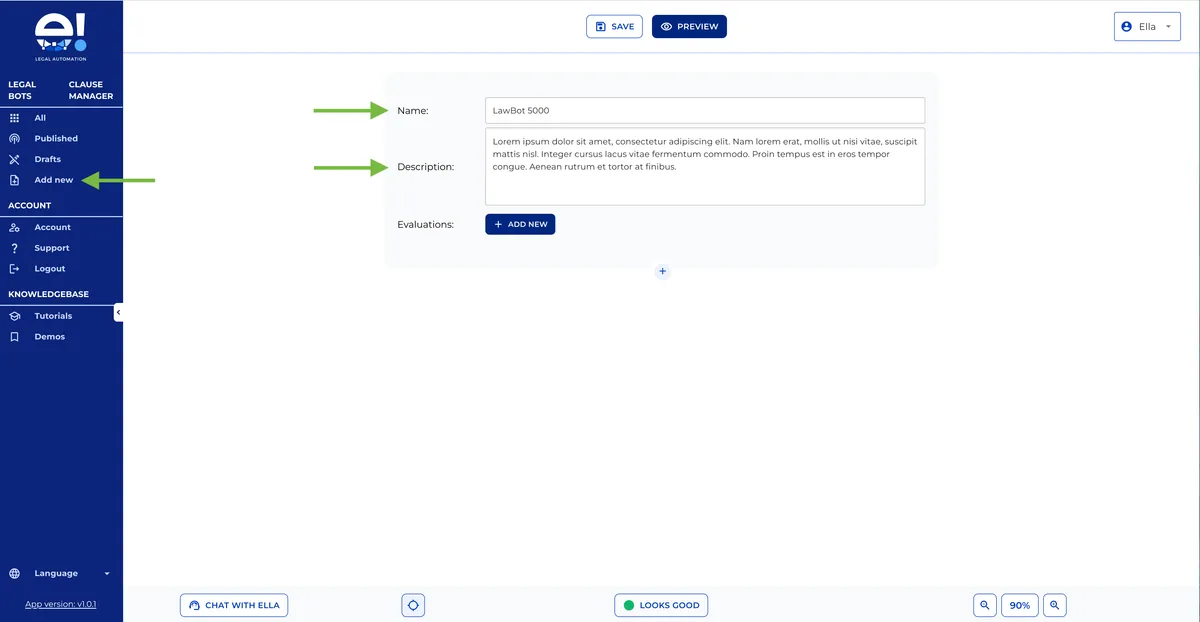
Click on “Add New” in the side menu to create your first Legal Bot. To maximize your workspace, you can hide the side menu by clicking on the small icon.
Step 2: Name Your Legal Bot and Add a Description
Name your Bot and, if desired, include a description for your reference. Note that the description will not be visible to your clients.
Step 3: Add Nodes to Build Your Automation
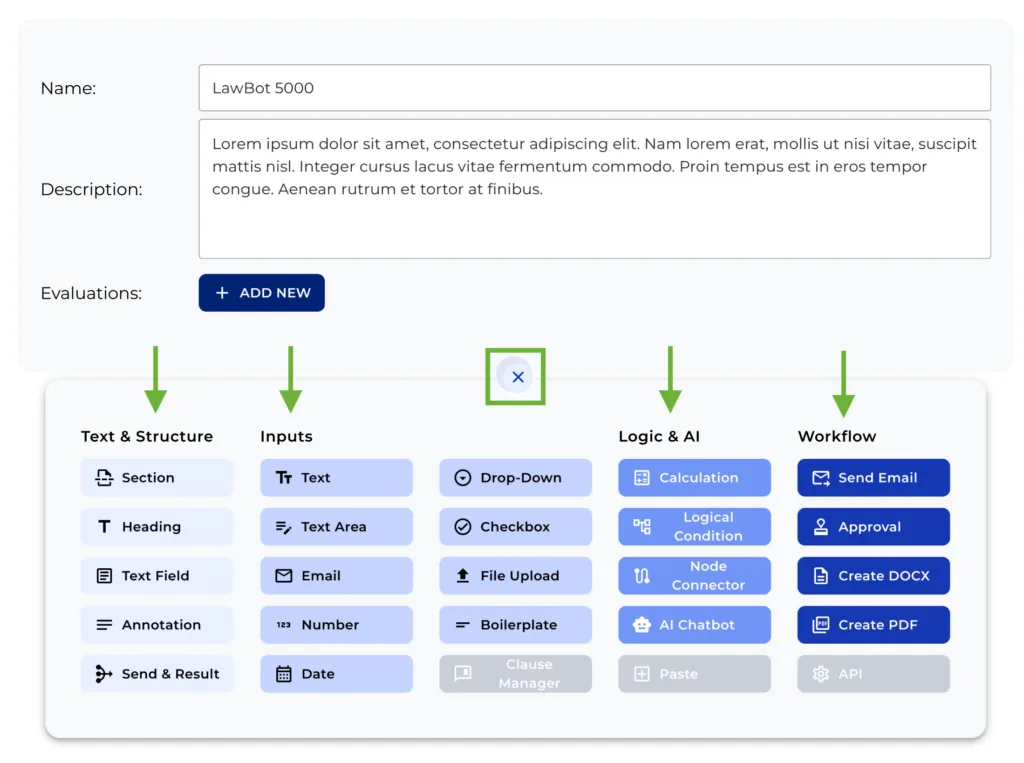
Click on the plus symbol to access various nodes that can be used to construct your automation. The no-code canvas is incredibly easy to use, offering a range of node categories to suit your needs:
- Text & Structure Nodes: Design your Bot with sections, headings, and text fields, or connect nodes to merge different paths.
- Input Nodes: Create input fields for clients to enter information using the bot. We will explain each node in detail in separate videos.
- Logic & AI Nodes: Develop simple or complex logical conditions, make calculations, display evaluations, or show results.
- Workflow Nodes: Trigger workflows such as sending emails, generating documents, or requesting approvals. The canvas is intuitive, and everything is just a click away.
Step 4: Navigate Through the Canvas
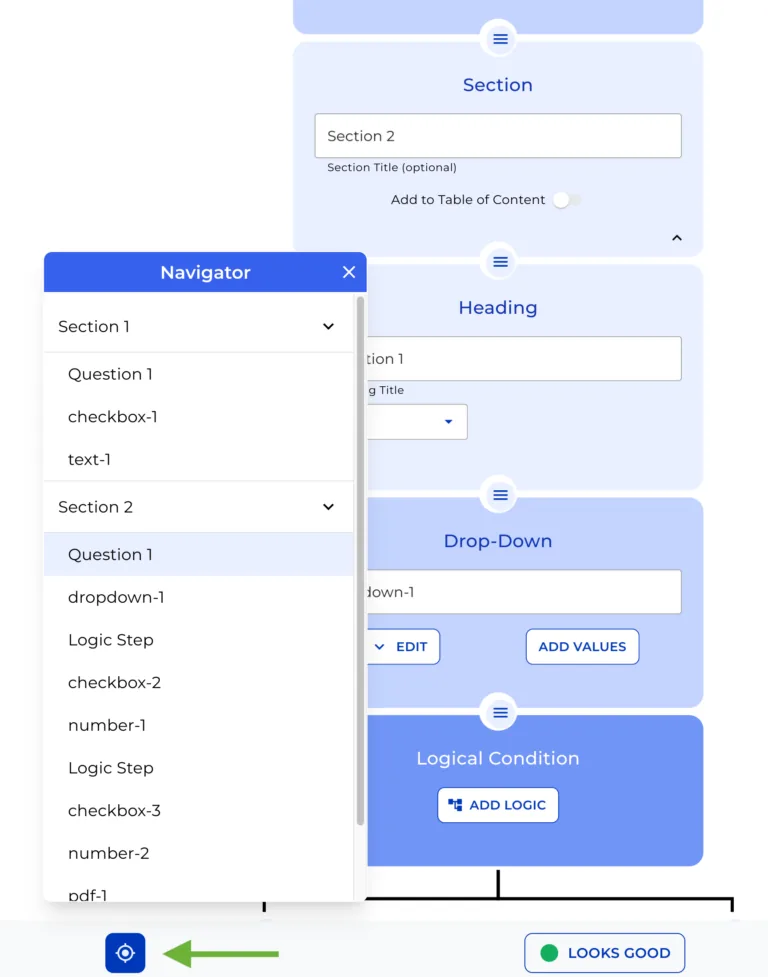
Easily navigate the canvas by clicking on the “navigator icon” in the bottom menu. With the navigator open, you can click on each section or node to access it on the canvas.
Step 5: Check errors or Warnings
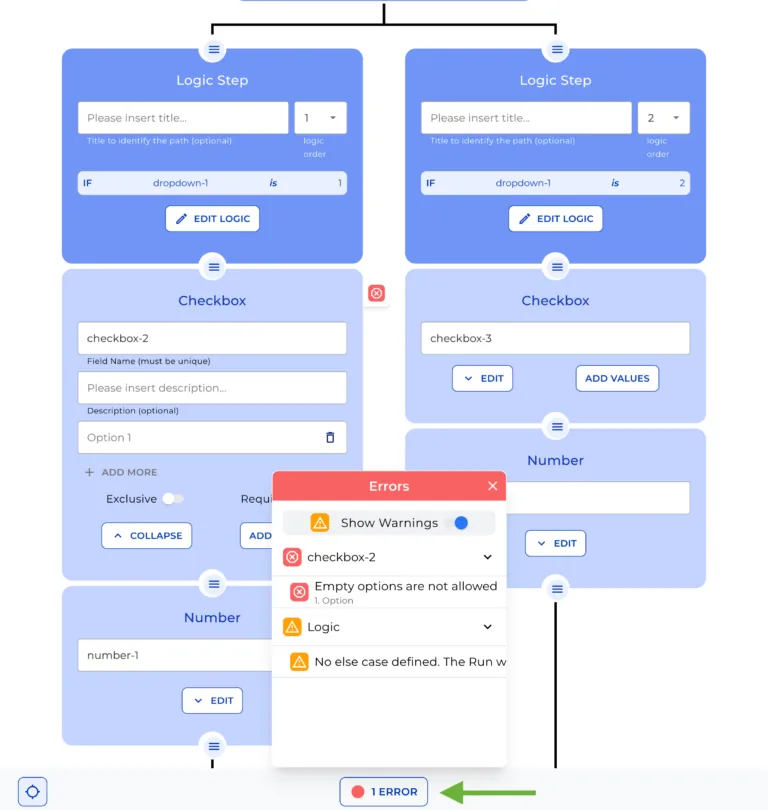
To make sure your Bot works smoothly, click over the button and see a detailed list of errors and warnings that may cause potential issues in your Bot.
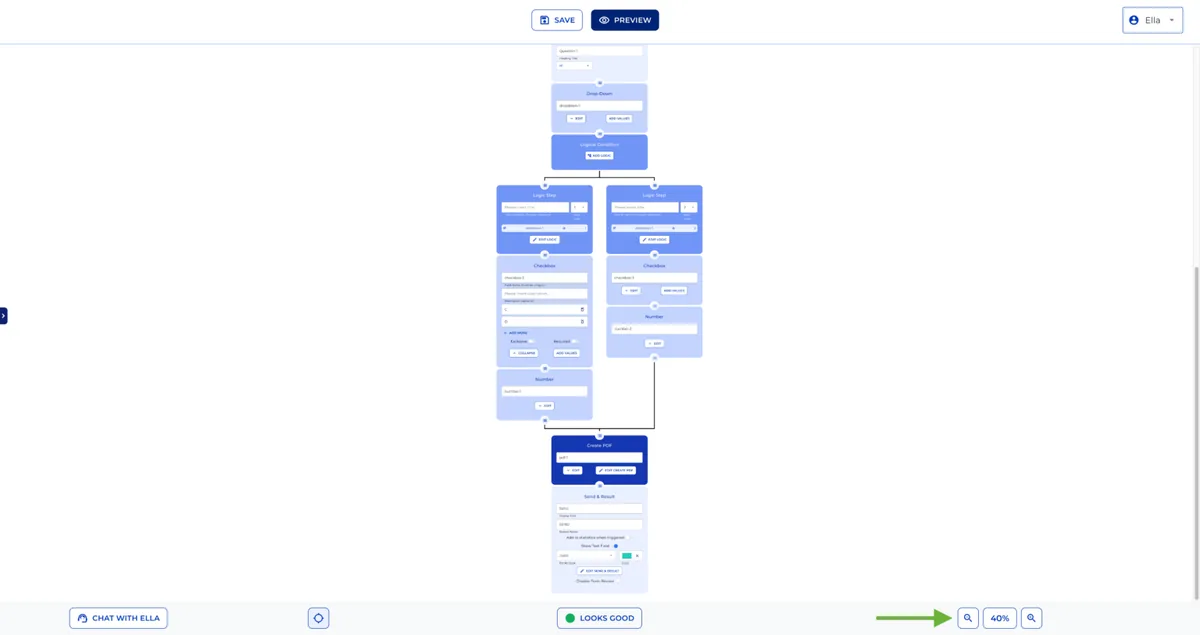
Step 6: Zoom in and out
Use the magnifying glasses to make your canvas as bigger or smaller as you need.
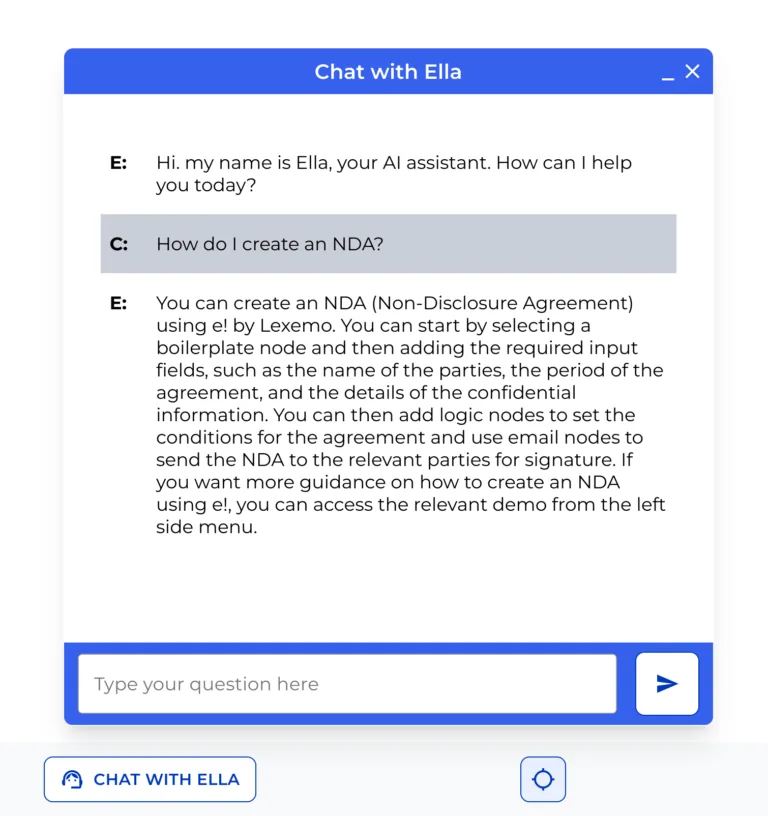
Step 7: Chat With Ella
If you need help to build your bot, no worries, Ella is there for you! This powered OpenAI chat will provide immediate support with any legal-related questions you may have.
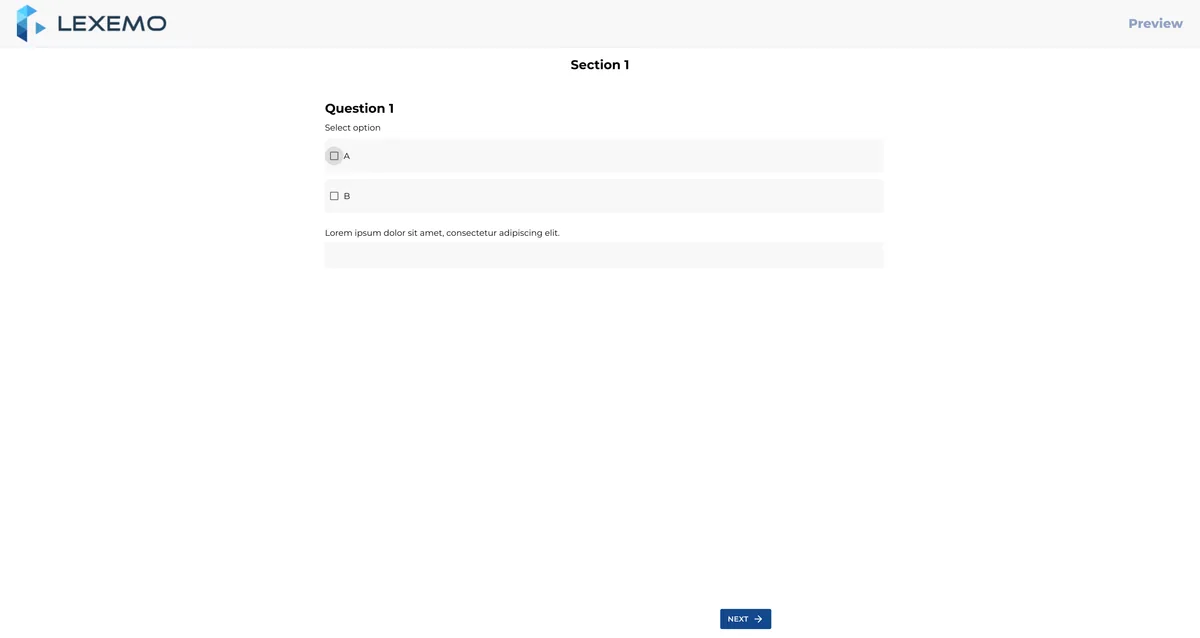
To see what your clients will experience, click on the “Preview” button in the top menu. If you have a team subscription, you can customize the appearance by changing colours and adding your own logo or your clients’.
That’s all for now! We hope you enjoy creating Bots with our no-code canvas. See you next time!