Plausibility Check with AI: Evaluate an accident description in traffic law context
This traffic law plausibility check compares an accident description against the historical weather at the stated time and place of the accident. It translates the address into coordinates, retrieves the actual weather, and runs a forensic plausibility check - all in the time it used to take just to open a weather archive.

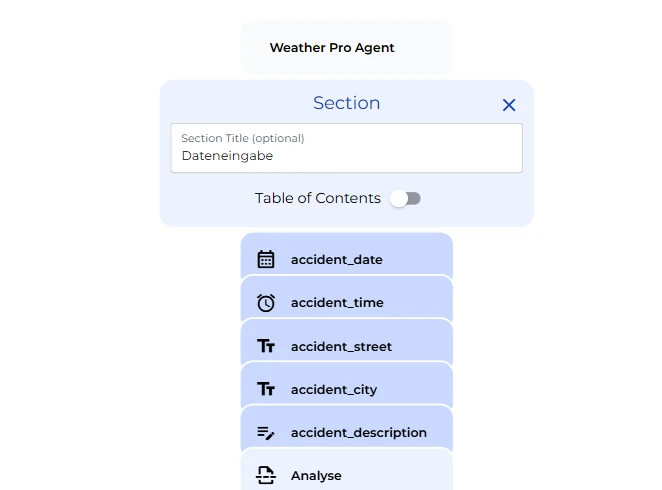
Accident Data Input
The bot opens on a short data collection screen. It asks for the accident date and time and the full address. A fifth field is optional: a free text box where the accident can be described.
AI Weather Lookup
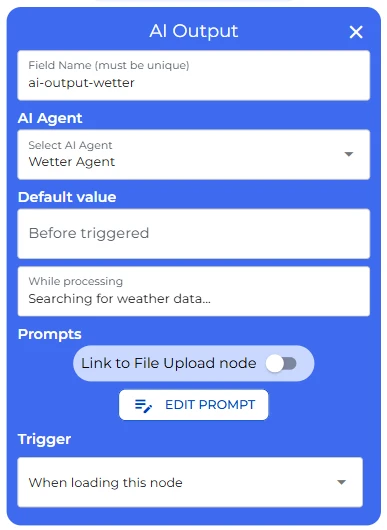
Once the required fields are filled the bot hands off to its first AI step, a Pro Agent using different tools. Its job is to find out what the weather actually was, at that exact address, on that exact date and time. It first calls an address-to-coordinates tool, turning the street and city into GPS coordinates, then calls a second tool that returns the historical weather for those coordinates.
One detail matters here: weather tools report on the hour, not the minute. If someone enters a time like 14:09, the agent is instructed to round to the nearest hourly reading, 14:00 in that case, and use that as value.
The prompt behind it reads:
You are an assistant that determines coordinates from an address using the “Address to Coordinates” tool, then retrieves the weather for those coordinates at the specified time.
Important note on time: the weather tool returns hourly readings. If a minute-precise time is requested (e.g. 14:09), the final answer must use the nearest full-hour reading (e.g. 14:00).
Respond professionally, factually, and exclusively in this simple HTML format (no headings):
- Weather conditions: a brief summary of the weather, including temperature, precipitation, and visibility.
- Data basis: a short explanation in bullet points of how the location was determined and which time was used (rounded, if applicable).
Do not output any further text, greetings, or closing remarks before or after this HTML block.
AI Plausibility Check
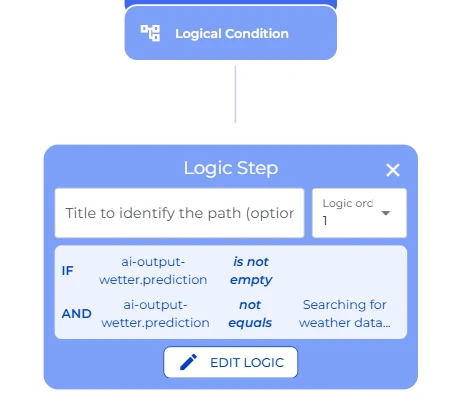
Right after the weather lookup, a small check in the workflow confirms the weather result has been actually retrieved before the next step starts, just to make sure no “empty” values are used or displayed in the following.
The second AI step is where the bot does its real work: it’s configured as an expert in traffic accident analysis. It’s given two things, the accident description and the weather report the first agent just produced, and its only task is to judge whether the story holds up against the facts. If someone describes a hard brake and skidding due to a wet road, does the weather data actually show rain at that time and place, or not?
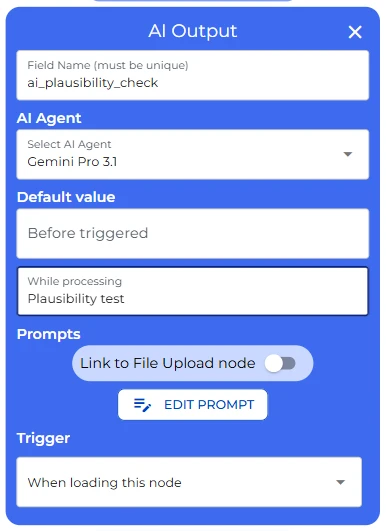
The prompt reads:
You are an expert in traffic accident analysis. Your task is to compare the description of the accident with actual weather data and assess its plausibility.
Respond professionally, factually, and exclusively in this simple HTML format (no headings):
- Result: Plausible / Not plausible / Unclear.
- Reasoning: a short, factual explanation in no more than two to three sentences of why the description does or doesn’t match the weather data.
Do not output any further text, greetings, or closing remarks before or after this HTML block.
The evaluation comes back as one of three outcomes: “plausible”, “not plausible”, or “unclear”, with a short justification. This node is the place to adjust if your organization needs its own standard for what counts as a match, how strict the comparison should be, or which weather conditions should raise a flag. It also runs automatically, with its own short status message while it works.
User View
On the user’s side, the flow is a compressed version of the same process, filled in directly by whoever experienced the accident, for example through a link shared by the firm. Obviously, you could also use this automation only internally in your law firm, e.g. filling in the information based on the phone call your lawyer had with the client. On first screen, choose the accident date and time, enter the address, and describe what happened. A “Next” button takes them into the Analysis section, where the weather lookup starts automatically with a brief status message, followed by a second status message while the plausibility check runs in the background.
The finished report then appears directly on screen: the weather at the accident location first, in plain language, and right below it, the plausibility verdict with a short explanation of why the account does or doesn’t match the conditions that day. No button, no PDF to wait for, the answer is right there, ready to read or carry over into the file.
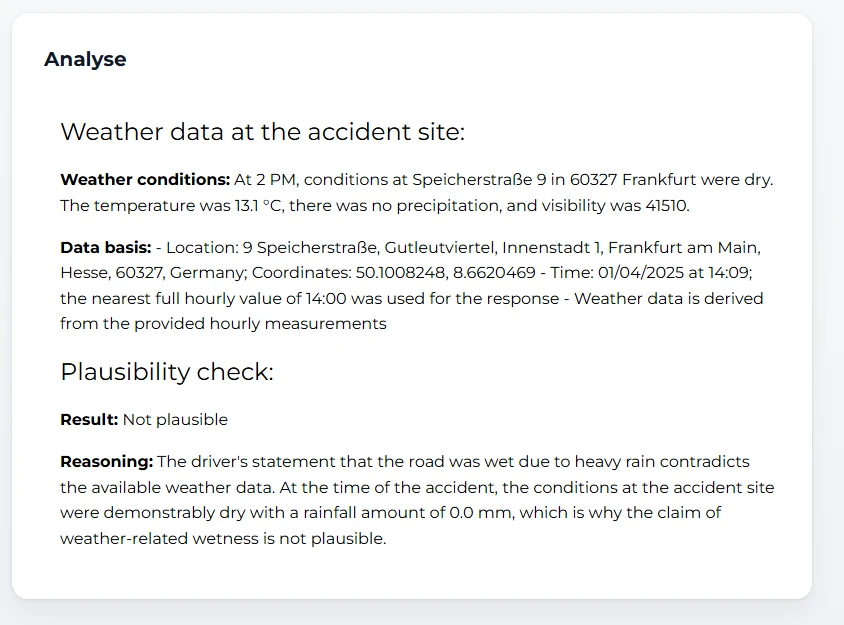
Whether that report should be shown on screen, sent out via email or routed directly to the case file, is worth deciding deliberately for your own deployment. If the automation is used by your client, the last step can be split, so the person submitting only sees a confirmation, while the full weather and plausibility assessment goes exclusively to your team.