NDA Document Analysis: Automate Intake, Compliance & Routing
Build an NDA Document Analysis bot that automatically extracts key legal data, runs two compliance checks, routes the file to SharePoint, generates an executive legal memo, emails the responsible lawyer, and optionally books a follow-up meeting, all from a single document upload.
This tutorial walks through how the NDA Document Analysis bot is built. In Part 2 you will see it running from the user’s perspective.
Here is the full picture. A user submits their name, email address, and an NDA document. The bot automatically extracts the key legal information, runs two compliance checks against your internal standards, routes the file to the correct SharePoint folder, generates an executive legal summary, emails the analysis to the responsible lawyer, drafts a reply to the NDA counterparty, and, if requested, books a follow-up meeting in the calendar. All of this from a single document upload.
Part 1: The Builder View
Step 1: Form Setup
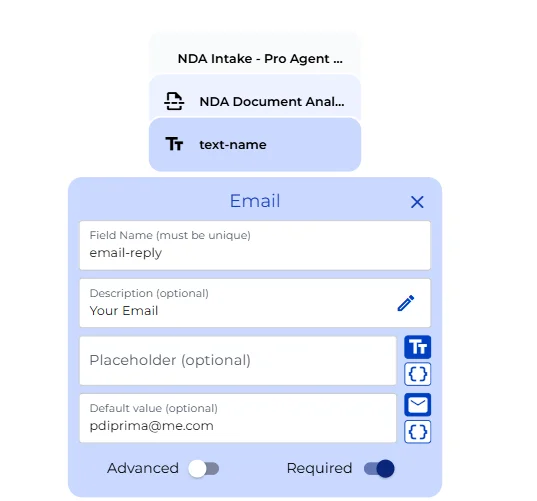
The form opens with a section heading and three inputs. The name field and email field collect the submitter’s details. The email address matters because the bot uses it later to address the draft reply to the counterparty, so it should point to a real inbox.
The file upload accepts PDF, Word, and plain text files and is limited to one document per submission. The critical setting here is that the upload is connected to the AI agent as a knowledge source. This means every downstream AI step has access to the full document content without you needing to wire the file to each node individually. Toggle required to ensure the bot will not proceed without the file upload being completed.
Step 2: AI Extraction & Variable Mapping
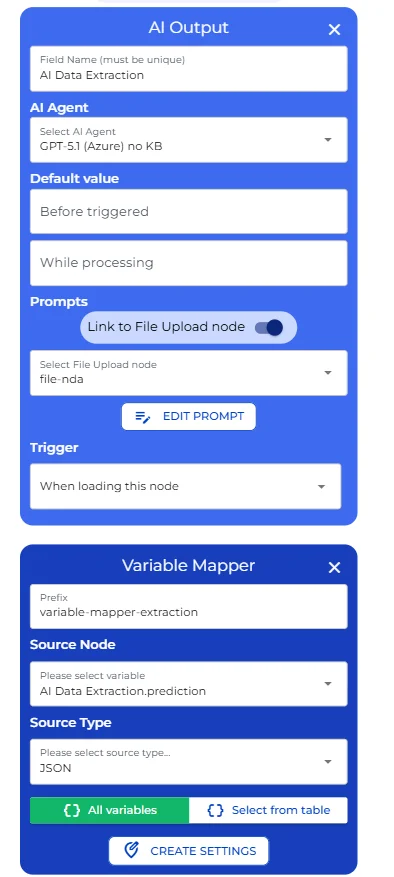
The first AI step instructs the agent to read the uploaded NDA and return a structured JSON object containing the names, addresses, and roles of both parties, the effective date, the contract term with its page reference, the governing jurisdiction, and the penalty clause if one exists. The output format is enforced in the system prompt, which keeps the downstream parsing reliable.
The variable mapper directly below it reads that JSON and splits it into individually named, typed references: party names, addresses, roles, effective date, term, governing law, and penalty clause. Every downstream node references these variables directly rather than touching the raw AI output.
Step 3: Compliance Checks
After extraction, two compliance checks run automatically in sequence.
The term check evaluates whether the NDA term exceeds five years, is indefinite, or is undefined. If any of those conditions hold, the output is “Breach of standard”. A term of five years or less produces “Standard fulfilled”.
The penalty check evaluates whether a penalty clause is present and whether the maximum stated amount exceeds €10,000. No penalty clause, or a penalty at or below €10,000, returns “Standard fulfilled”. Anything above returns “Breach of standard”.
Both nodes run immediately, produce no visible output for the user, and always return exactly one of those two phrases. That consistency is deliberate: it is what makes the routing logic downstream simple and easy to maintain. If you need to adjust either threshold, you do it in the system prompt of the relevant node.
Step 4: Filename Assembly & SharePoint Routing
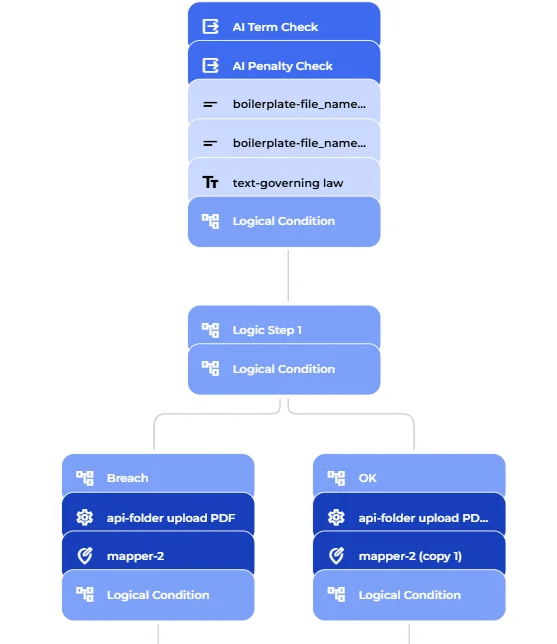
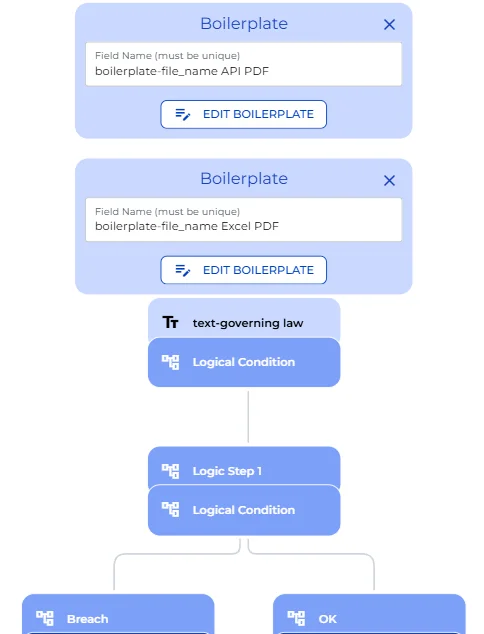
Before routing, a boilerplate node assembles the filename by combining “NDA” with the unique run ID of the current submission. This gives every archived document a traceable name in SharePoint, tied directly to a specific bot run.
The routing logic evaluates both compliance check results. If either check returned a breach, an API connector uploads the file to the “to check” SharePoint folder. If both checks passed, the file goes to “OK”. Both branches then merge and pass the SharePoint URL forward to the analysis step. The SharePoint site ID and the folder paths are configured directly in the connector mapping. Update them here if your document management structure uses different folders or a different site.
Step 5: Executive Legal Summary
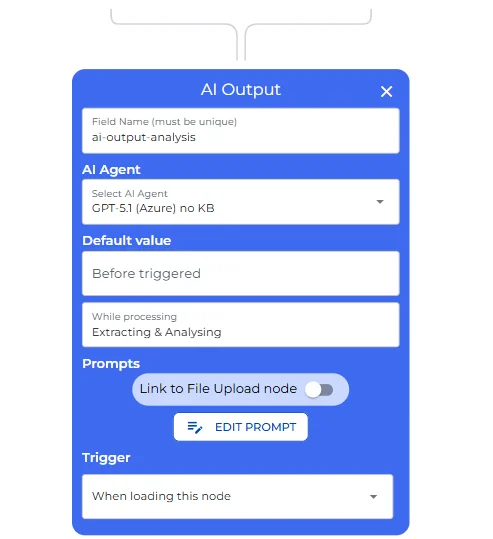
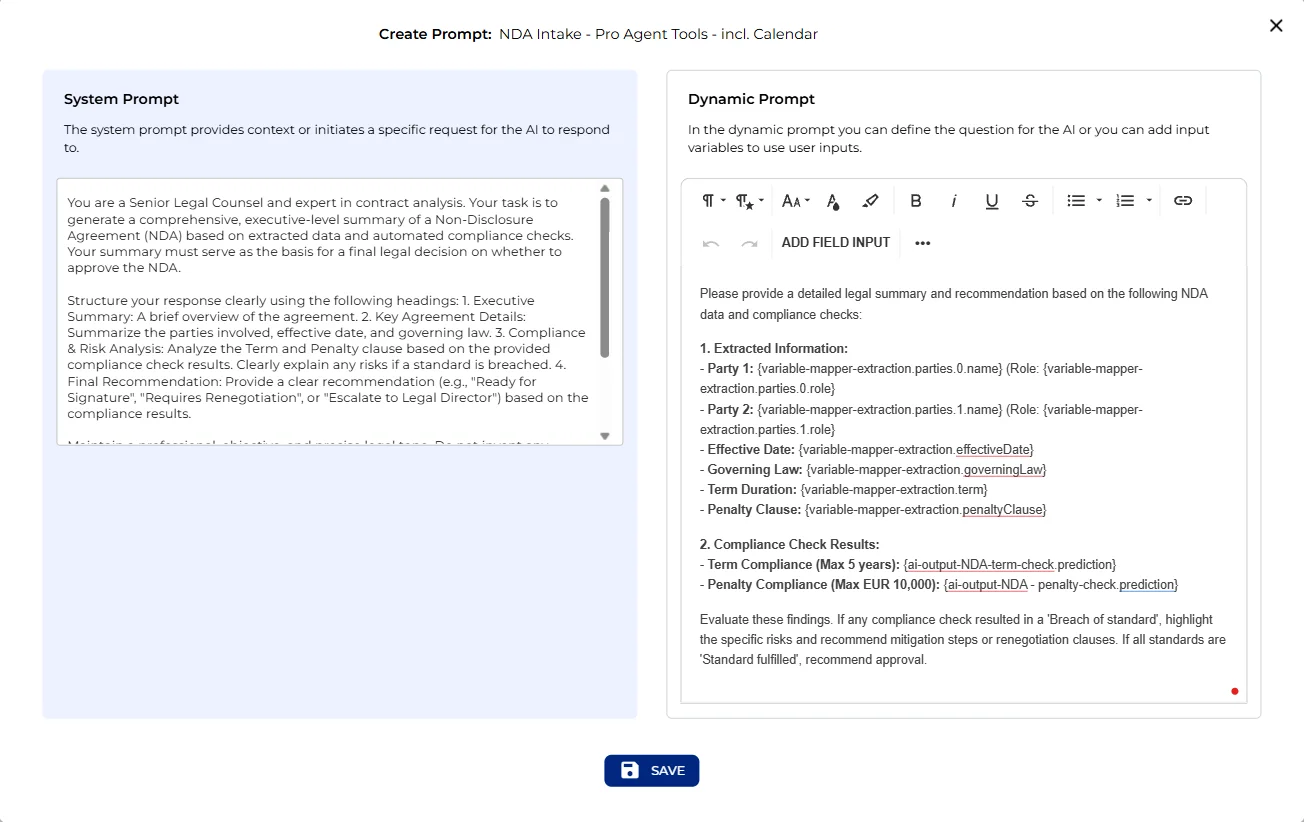
Once the file is routed, the bot generates the executive legal summary. This AI step reads all the extracted variables alongside both compliance results and produces a structured HTML memo. The memo follows a consistent four-section format: an executive summary, a key agreement details section, a compliance and risk analysis section that explains any breach in plain business language, and a final recommendation stated as one of three options: “Ready for Signature”, “Requires Renegotiation”, or “Escalate to Legal Director”. While this step runs, the user sees the “Extracting and Analysing” message.
Step 6: Result Panel & Optional Meeting Booking
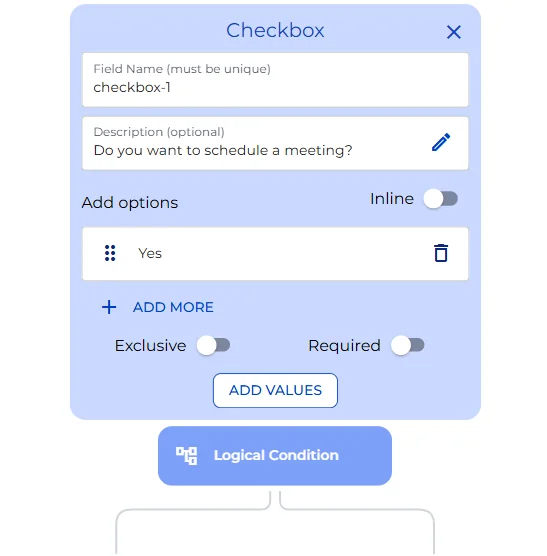
The result panel confirms the analysis is complete and shows a summary table with the extracted party names, effective date, and governing law, followed by the full legal memo. Below the panel, a checkbox asks whether the user wants to schedule a follow-up meeting.
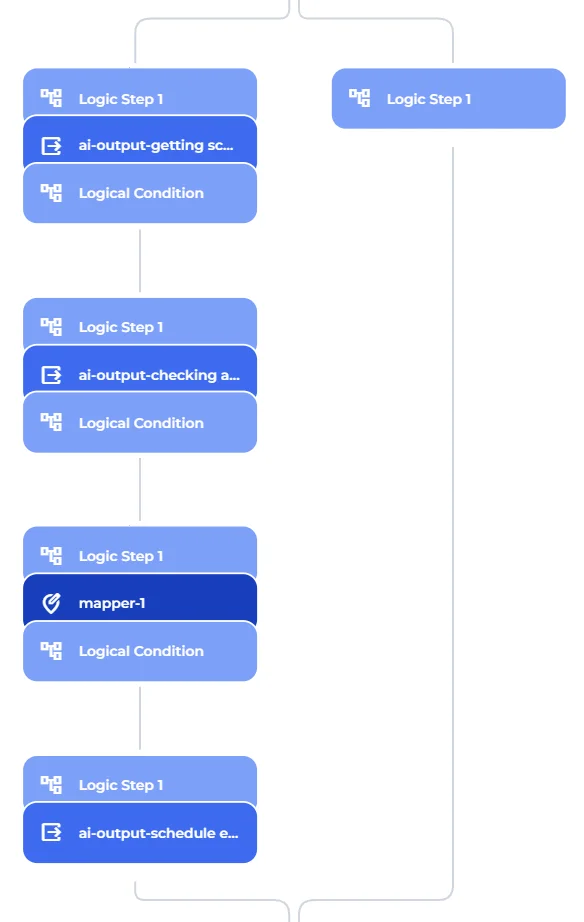
If the user selects “Yes”, two AI Pro Agents handle the scheduling. Pro Agents are AI steps configured with tools that can read and write to external systems rather than just processing text. The first Pro Agent uses Microsoft 365 calendar tools to retrieve the responsible lawyer’s schedule for the next five business days. A standard AI step then identifies four free 30-minute slots in Central European Time, spreads them across different days, and outputs them as a JSON array. A variable mapper with the data display option enabled renders that array as a visible slot table in the form.
The second Pro Agent then creates a calendar event for the selected slot, invites the NDA submitter by email, and writes a brief summary of the legal analysis and the SharePoint document link into the meeting notes.
Step 7: Lawyer Email & Draft Reply
When the user clicks “Send request”, the bot sends an email to the responsible lawyer containing the full analysis and the SharePoint link. A final AI Pro Agent configured with Microsoft Outlook tools then drafts a professional reply to the NDA submitter, formatted as an in-house legal counsel communication, and saves it to the Outlook drafts folder for review before sending.
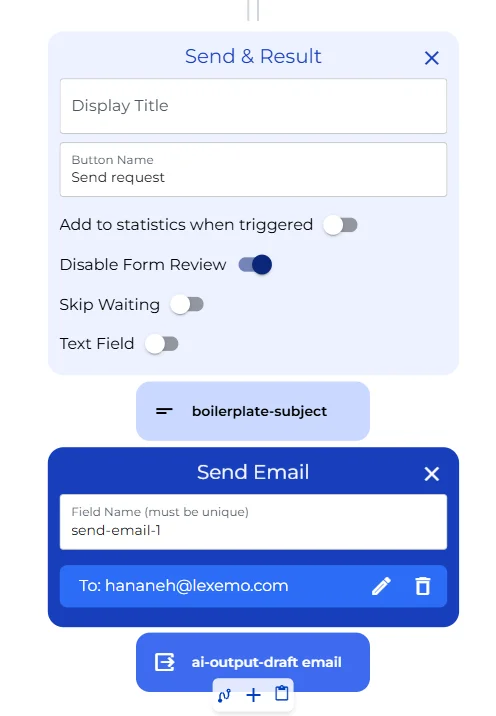
Every step visible on this canvas is configurable to your own thresholds, folder structure, email addresses, and calendar accounts.
Happy automating with e!