Lawlift Integration: Connect Legal Bots via API
Build a Legal Bot that extracts term sheet data with AI, lets users review and edit it, then auto-generates a Lawlift document — step-by-step in Lexemo e!.
Hello! Today I’ll guide you through building a bot that can:
- Extract data from a term sheet
- Allow you to review and manually edit it
- Automatically push the data into Lawlift platform to create a document using a Lawlift template.
Ready to see the bot in action? Let’s begin!
Step 1: Term Sheet Upload
The first section of the bot allows the user to upload the term sheet we want to process. This is the starting point of the workflow.
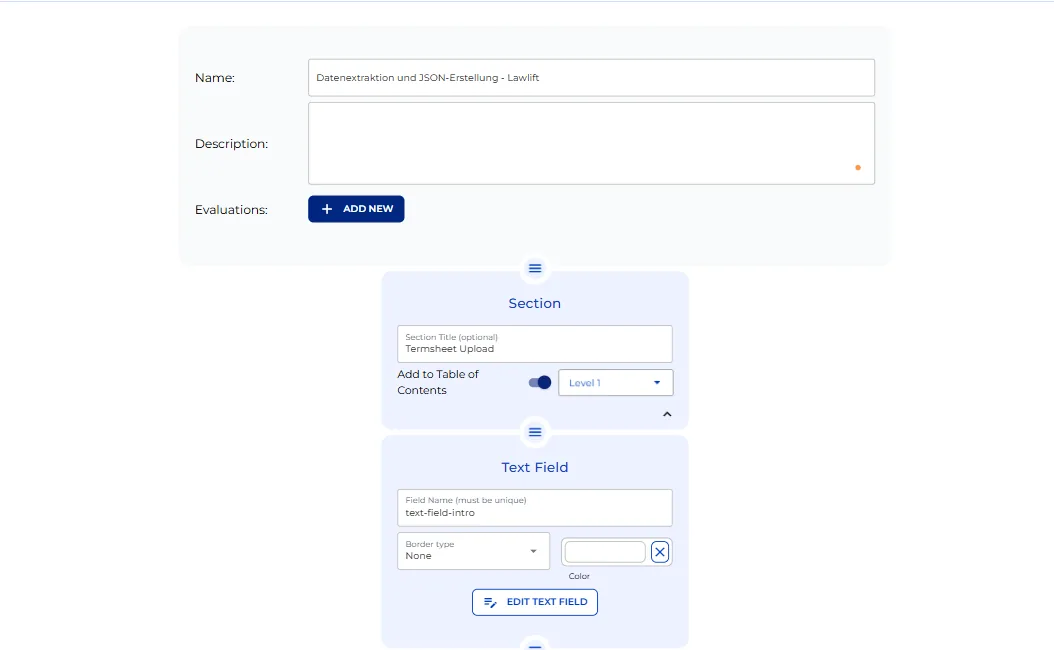
- Add a Section Node and name it “Termsheet Upload.”
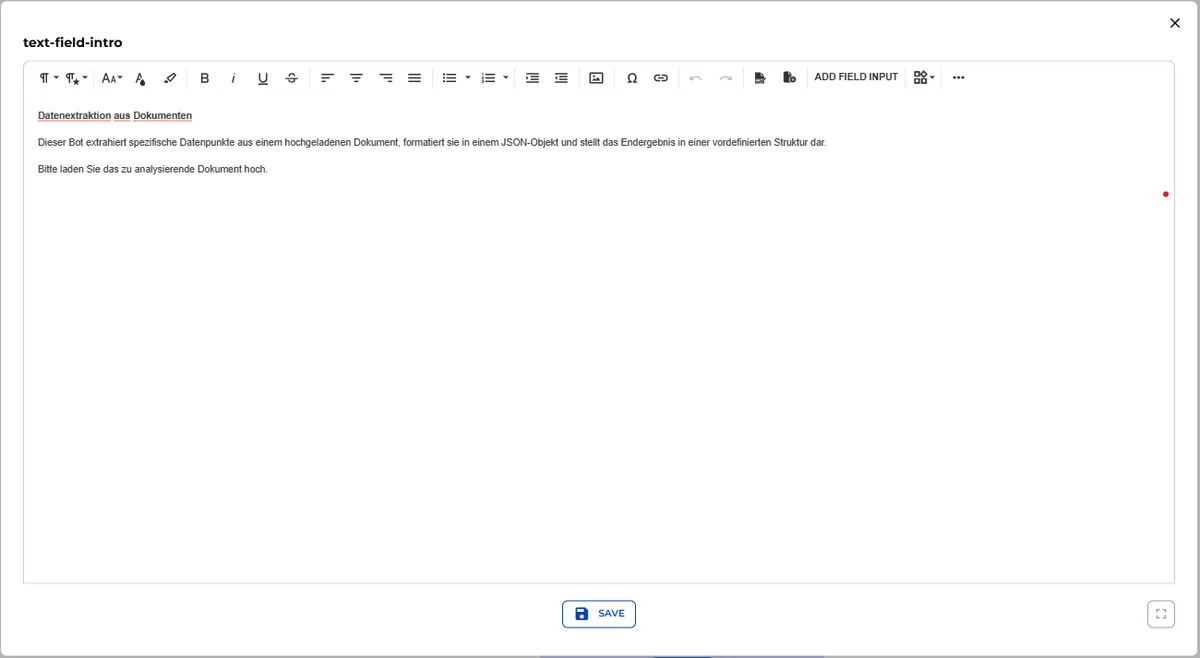
- Add a Text Field Node named “text-field-intro” to give clear instructions to the user.
– Edit the node and paste your introductory text.
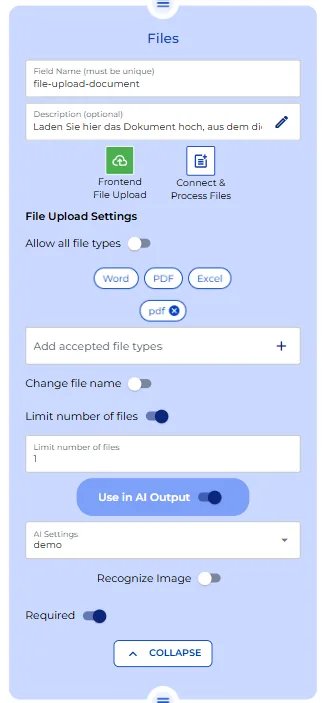
- Add a File Upload Node to allow users to upload the term sheet.
- Provide a name and description for clarity.
- Configure file type and AI settings, toggle “Use in AI Output,” and mark the node as “Required” so users cannot proceed without completing this step.
Step 2: Data Extraction
In this section, the bot will extract the data from the uploaded document and format it for editing before sending it to Lawlift.
- Create a Section named “Data Extraction.”
- Add an AI Output Node to parse the uploaded term sheet. The AI should extract specific fields such as names, addresses, and amounts according to the field names specified in Lawlift.
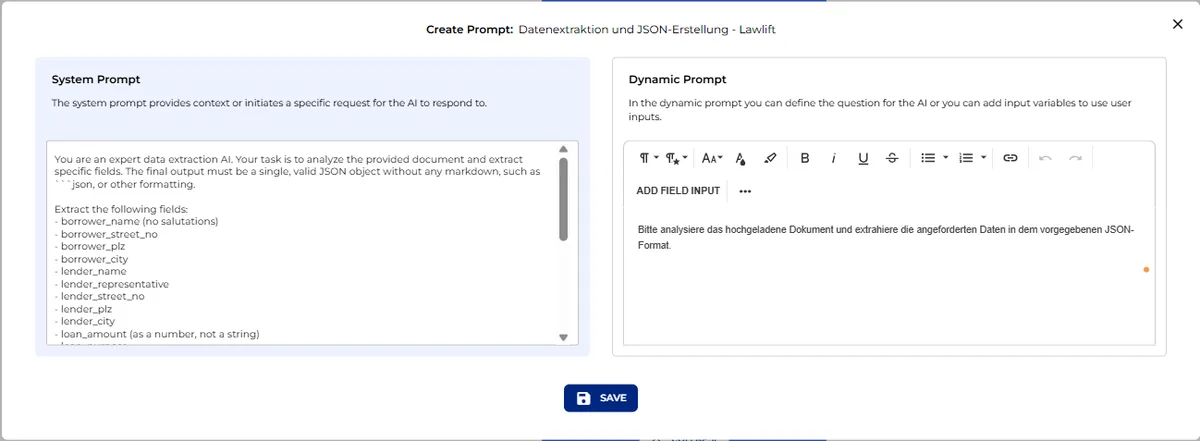
- Configure the prompts:
System Prompt:
Instruct the AI to analyze the term sheet, extract the required fields, and return them as machine-readable JSON.
“You are an expert data extraction AI. Your task is to analyze the provided document and extract specific fields. The final output must be a single, valid JSON object without any markdown, such as “`json, or other formatting.
Extract the following fields:
- borrower_name (no salutations)
- borrower_street_no
- borrower_plz
- borrower_city
- lender_name
- lender_representative
- lender_street_no
- lender_plz
- lender_city
- loan_amount (as a number, not a string)
- loan_purpose
- loan_interest (as a number, not a string)
For the following fields, output a boolean value (true or false without quotes):
- borrower_male_tf
- borrower_female_tf
- lender_male_tf
- lender_female_tf
- lender_private_tf
- lender_company_tf
- interest_settlement_quarterly_tf
- interest_settlement_semi-annually_tf
- interest_settlement_annually_tf
If a value cannot be found, use an empty string "" for text fields, 0 for the loan amount, and false for boolean fields”.
Dynamic Prompt:
Include the text variable from the uploaded file and specify the output format as JSON.
“Bitte analysiere das hochgeladene Dokument und extrahiere die angeforderten Daten in dem vorgegebenen JSON-Format”.
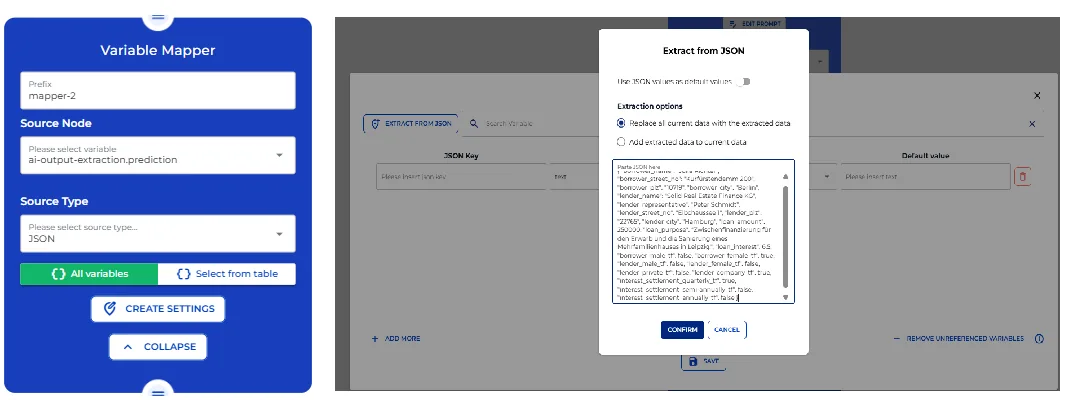
Once the AI completes the extraction, we need to map the JSON data into individual variables:
- Locate the JSON using the Debugger in the Preview area:
- Upload a sample term sheet
- Click Upload → then Next
- Open Prediction and copy the extracted JSON
- Add a Variable Mapper Node:
- Select AI-Output Extraction Prediction as the source node
- Set source type to JSON
- Paste the JSON from the Debugger into the settings
- Filter out any unnecessary fields if needed
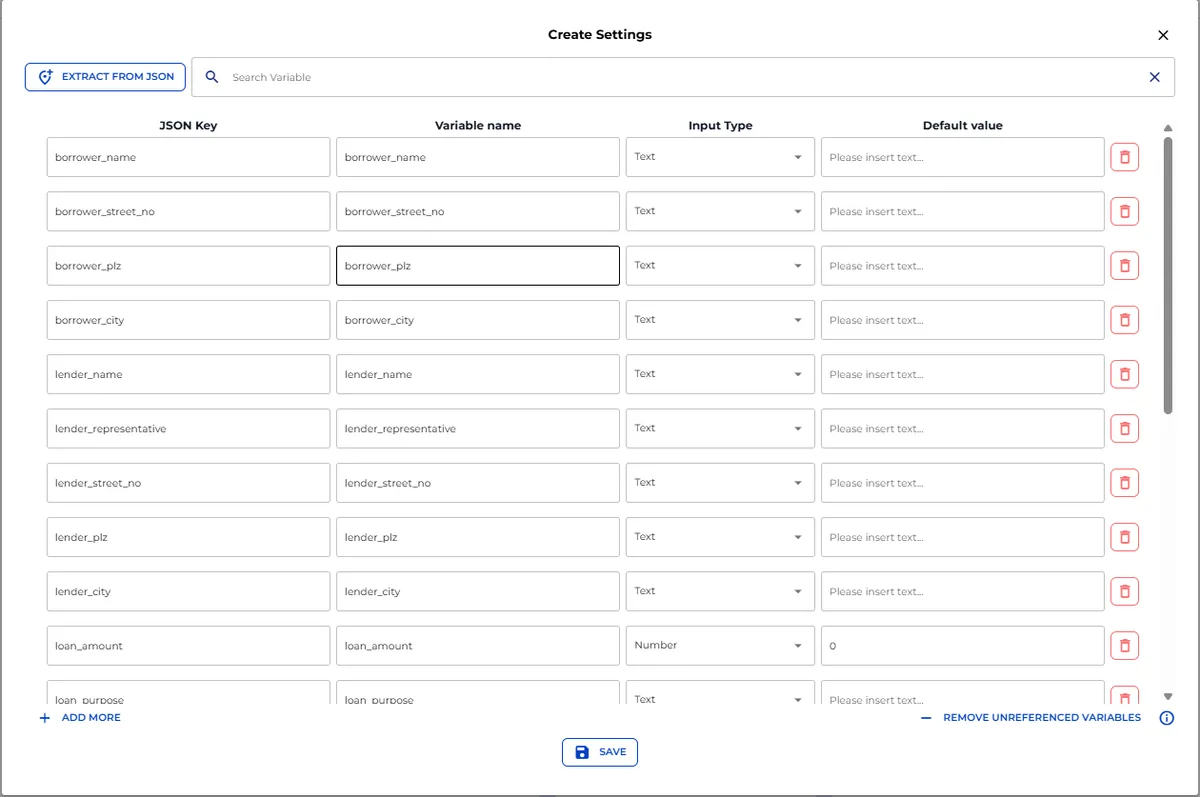
Step 3: Making Extracted Data Editable
Now we want each extracted data point to appear as default, editable values so users can review and correct information before sending it to Lawlift.
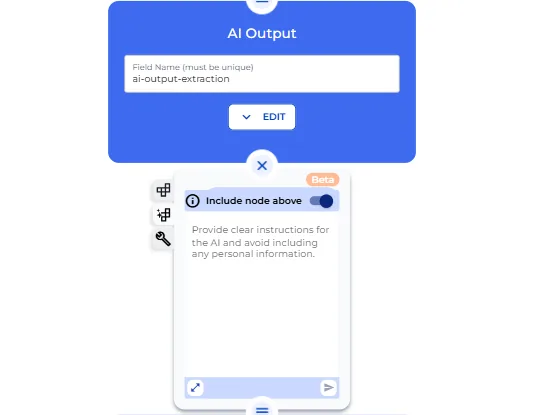
- Use AutoMate to automatically create:
-
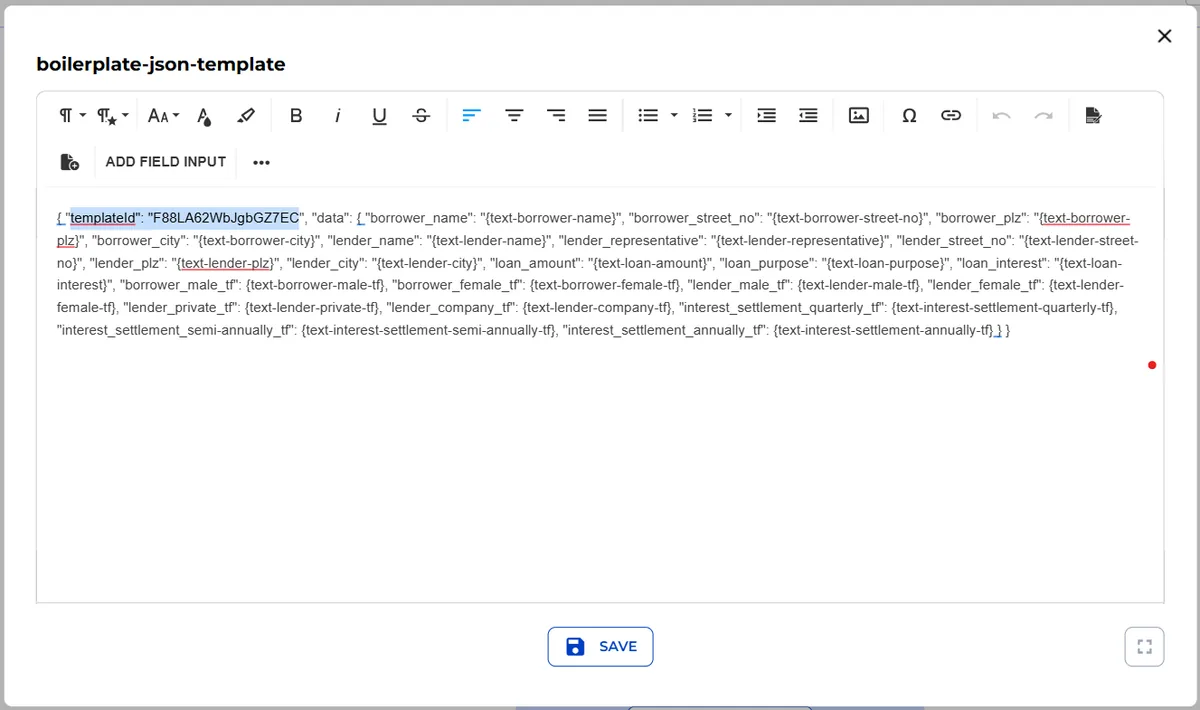
Input fields with default values prefilled from the JSON and a Boilerplate Node containing a JSON referencing the input fields (required for Lawlift)
-
Toggle “Include Node Above” so AutoMate identifies variables from the Variable Mapper
-
Provide a prompt for AutoMate to:
-
Generate all the editable input fields
-
Create the boilerplate JSON for Lawlift
-
Wait a few seconds while AutoMate generates the nodes
Add the Lawlift Template ID to the boilerplate JSON
Step 4: Generating the Contract in Lawlift
Before generating the document, add a logical step to ensure AI Output Extraction is not empty
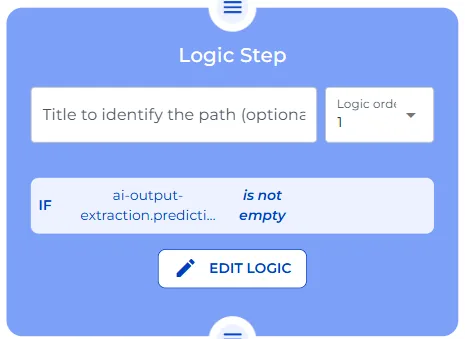
Once the data is verified, we need to use an API Connector node to send extracted data to Lawlift in form of a JSON and use a Variable Mapper Node to Map the API response
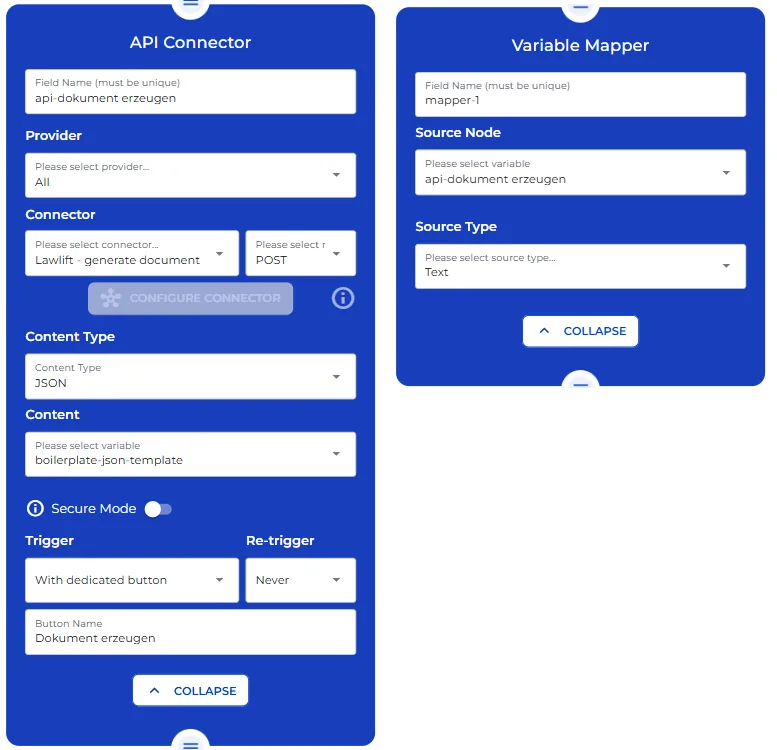
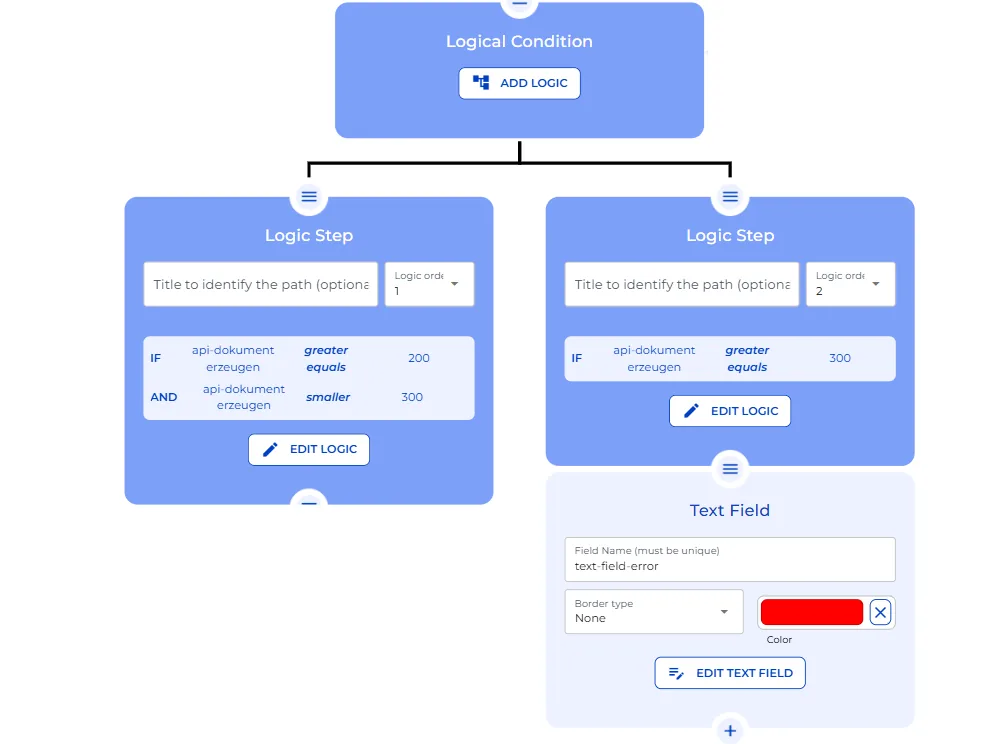
Add a logical condition to handle API response codes:
- 200–300: Continue processing
- 300+: Flag an error
Step 5: Document Link and Completion
In the final stage, we will display a clickable document link for the user.
Add an AI Output Node with a prompt to generate a clickable HTML link
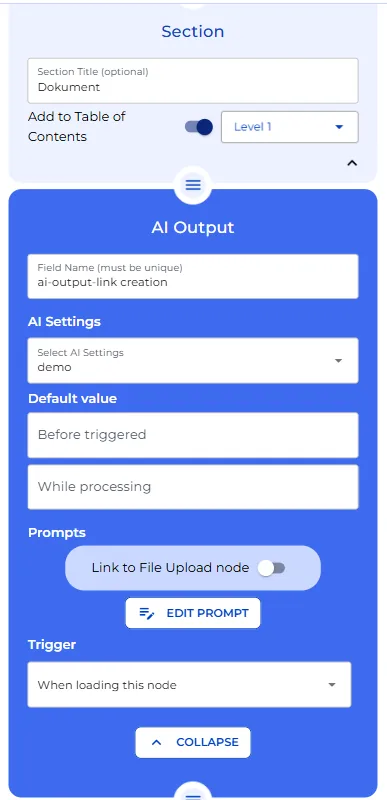
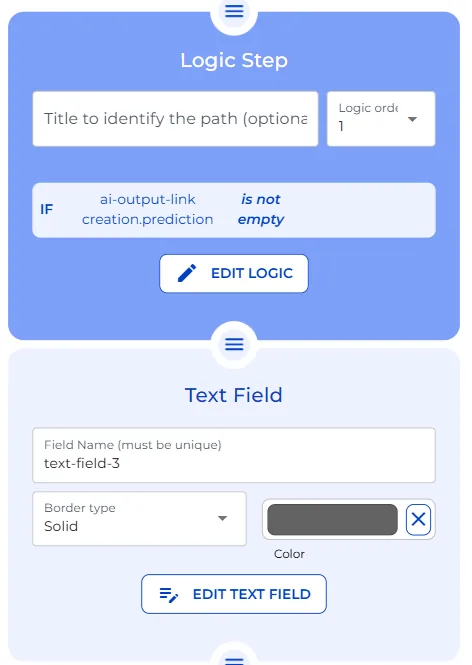
Add a logic condition to ensure the node has finished processing and Add a Text Field Node to show the clickable link on the front end
Add a Send & Result Node to complete the workflow
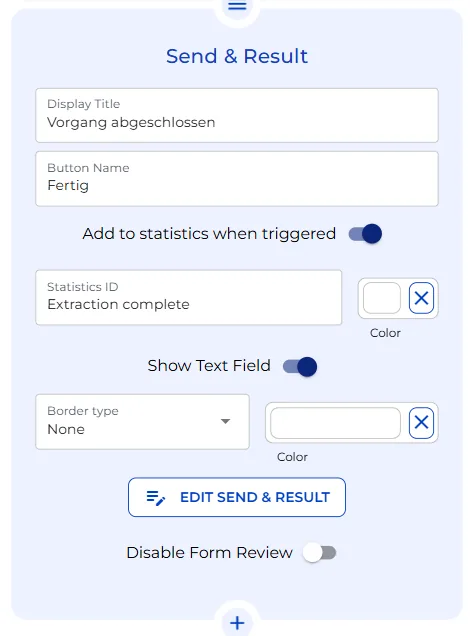
Congratulations!
You’ve successfully built a Lawlift Data Extraction Bot that:
- Extracts and maps term sheet data
- Allows manual review and edits
- Generates a Lawlift document with updated fields