Text Field Node: Show Results & Variables in e! Legal Bots
Use e!'s Text Field node to display AI outputs, risk results, and dynamic bot variables to clients — the go-to read-only display node for every legal bot.

The Text Field Node is ideal for providing additional guidance to clients or users of your Bot. The text entered in this node will be shown in the client view of the Bot, precisely at the position where you add the Node.
Let’s walk through the process of creating a Text Field Node.
Step 1: Add the Text Field Node to Your Bot
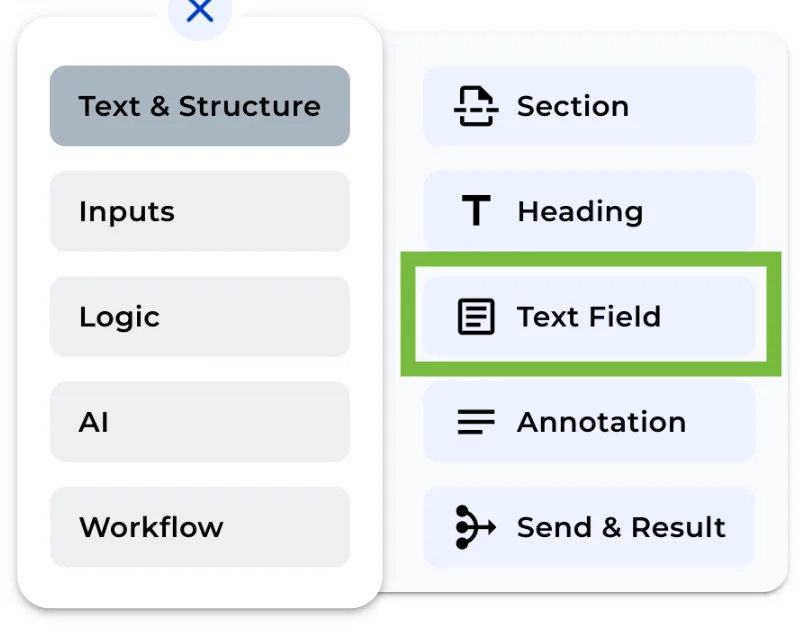
Click on the Text Field Node to include it in your Bot.
Step 2: Name the Section
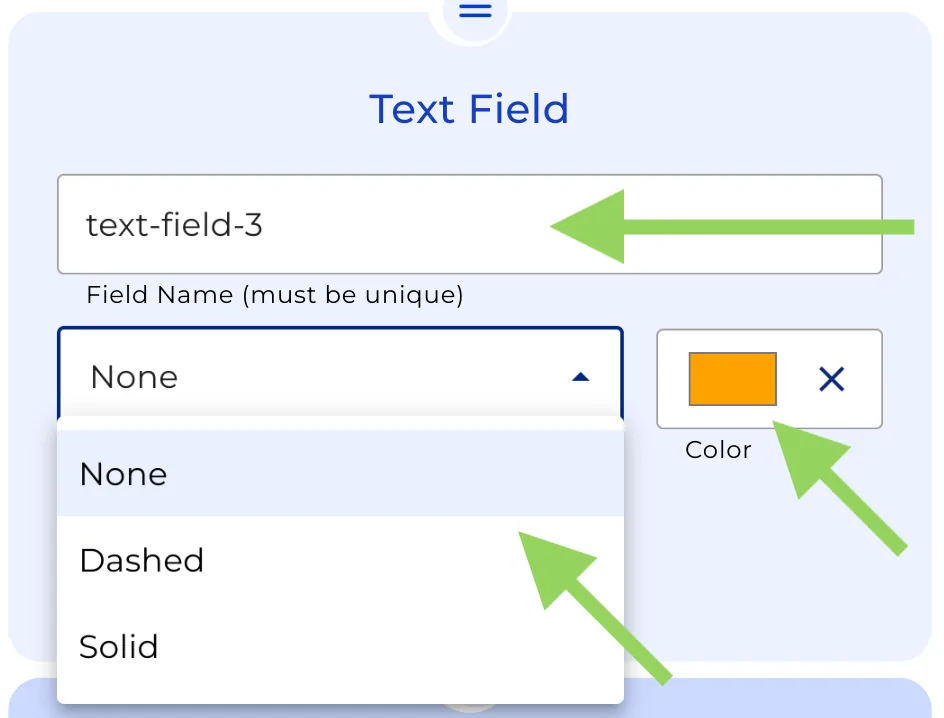
You have the option to assign a name to the Text Field for better organization.
Step 3: Design the looking of our Text Field
You can choose the looking you want to give to this text in the frontend. Just select the border type and colour that you wish.
Step 4: Create your text
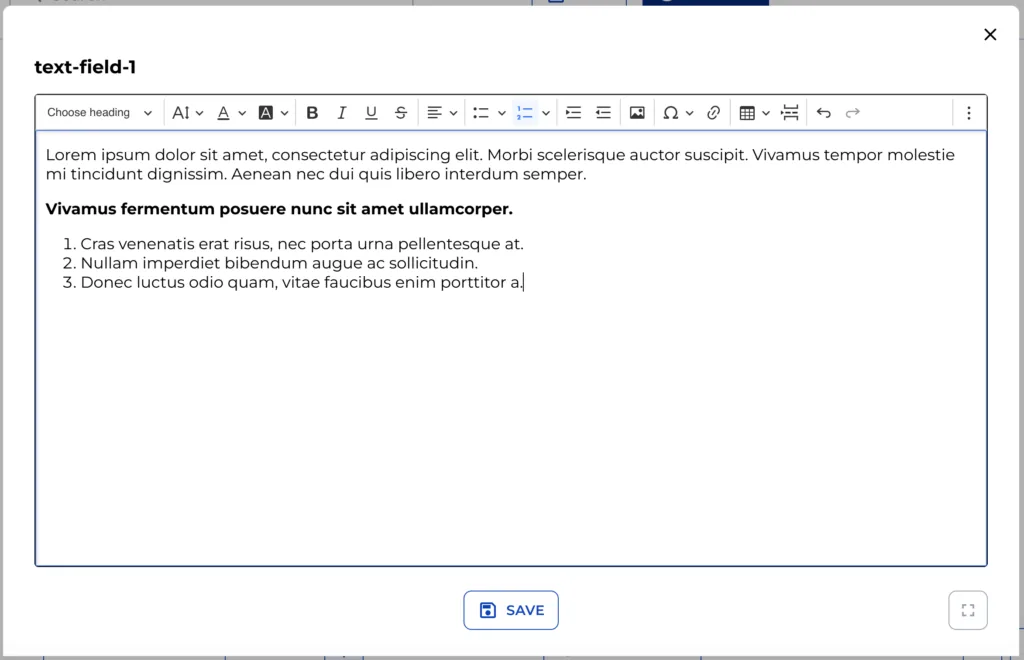
By clicking the “Create” button, a text editor will open, providing a “what you see is what you get” interface for adding and formatting your text.
Step 5: Save and Exit the Editor
Click “Save” to finalize your text field and exit the editor.
As always, you can check how your Text Field appears in the front end by clicking the “Preview” button in the top menu.
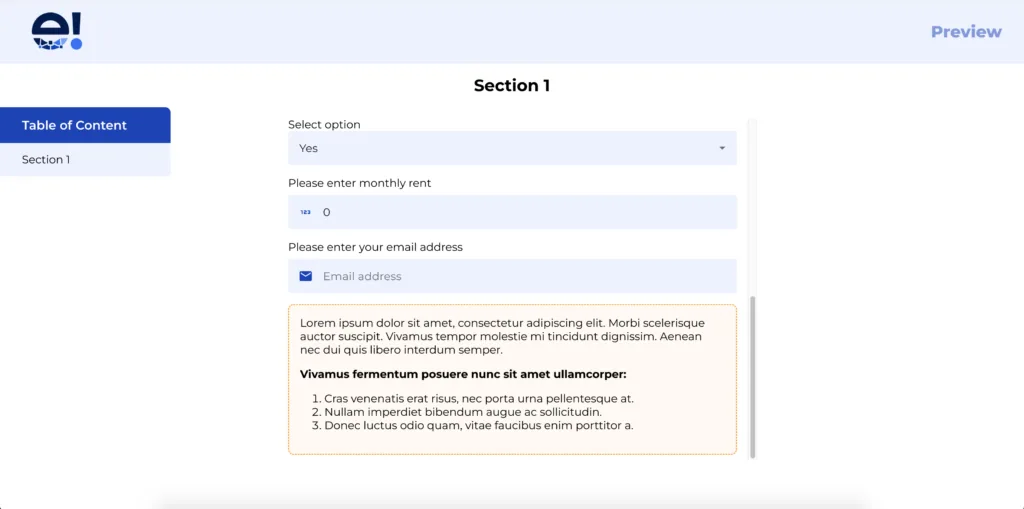
That’s it! you can easily offer advanced guidance to your client within the Bot.