Structure Node: Build Multi-Column Legal Forms in Lexemo e!
Build multi-column legal input forms in e! with the Structure Node — configure up to 3 columns with custom titles, separators, and mixed input types.

The Structure Node is a powerful feature that allows you to create forms that are visually appealing and well-organized. By utilizing columns and rows, you can easily categorize different types of content, such as dates, numbers, and text. This functionality enhances the clarity and usability of your forms, making data entry more intuitive and efficient for both your internal team and your customers.
Now, let’s dive into the steps to transform your form design!
Step 1: Create a New Bot
Begin by selecting Add New and giving your bot a name. This is the first step in setting up your form.
Step 2: Add the Structure Node
From the Text and Structure section, choose Structure Node. This node will automatically consist of two parts: Opening and Closing. You can add nodes in between these two sections.
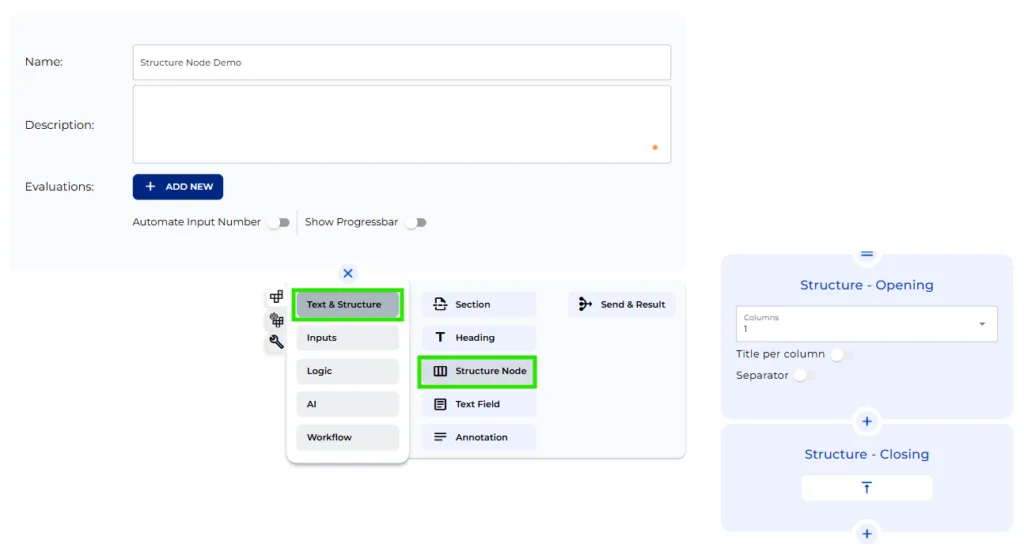
Step 3: Configure the Opening Section
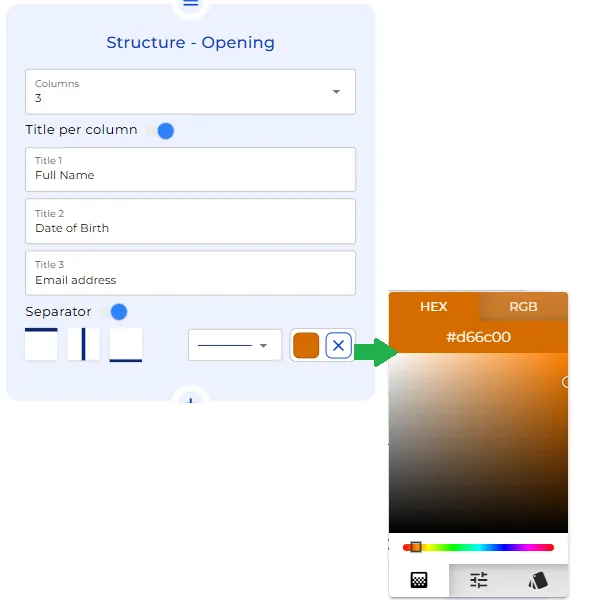
In the Opening section, you can add up to three columns. To do this:
- Toggle Title per Column to assign a title to each of your columns.
- Use the Separator toggle to create borders between your inputs. Customize the style, thickness, and color of the separator as needed.
Step 4: Edit Column Titles
Update the titles of your columns. For example:
- First column: Full Name
- Second column: Date of Birth
- Last column: Email Address
Step 5: Add Additional Nodes
To add new nodes, click on the plus sign. You will see specific options enabled for selection.
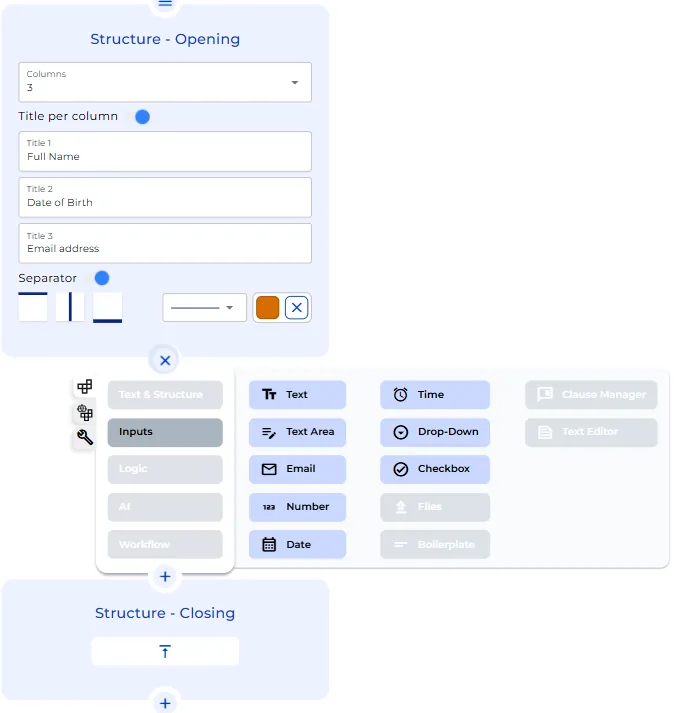
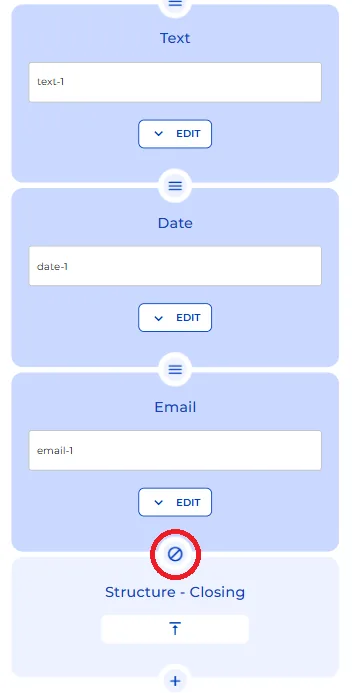
For this example, add:
- A Text node
- A Date node
- An Email node
Note that you can only add up to three nodes in total within this structure.
Step 6: Preview Your Form
After editing the necessary fields in the additional nodes, take a look at the user interface to see how everything looks! Click on Preview to enjoy the appearance of your creation.

And that’s it! You have now structured your questionnaire according to your preferences and necessities.
We hope this guide has been helpful and inspires you to create your own forms using the Structure Node! Happy form building!