Contract Triage with AI: Classify Incoming Contracts, Route Them, and Flag Risk
This contract triage bot reads an uploaded contract, determines its type, routes it to the right team, and flags its risk level, all from a short intake form and one AI step, no manual sorting required.
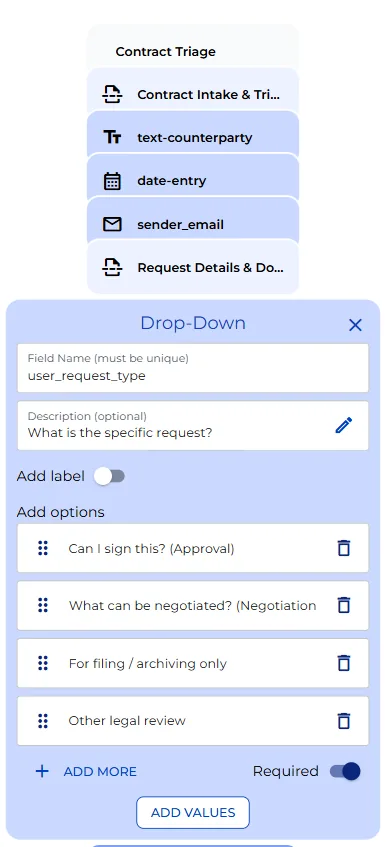
Contract intake
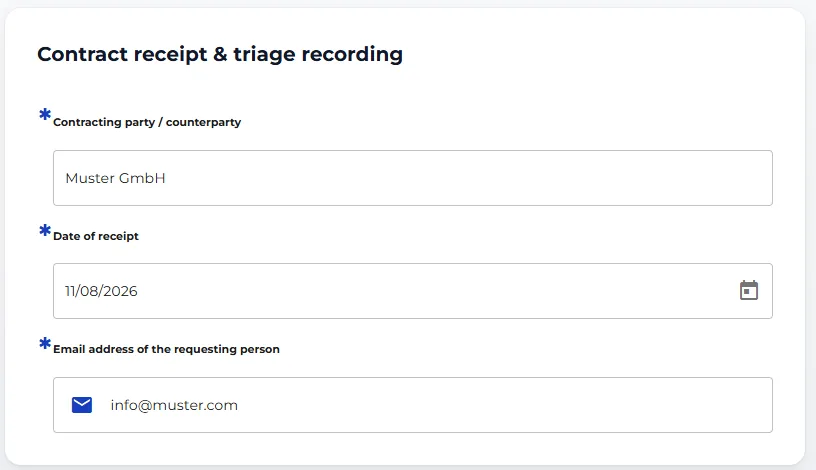
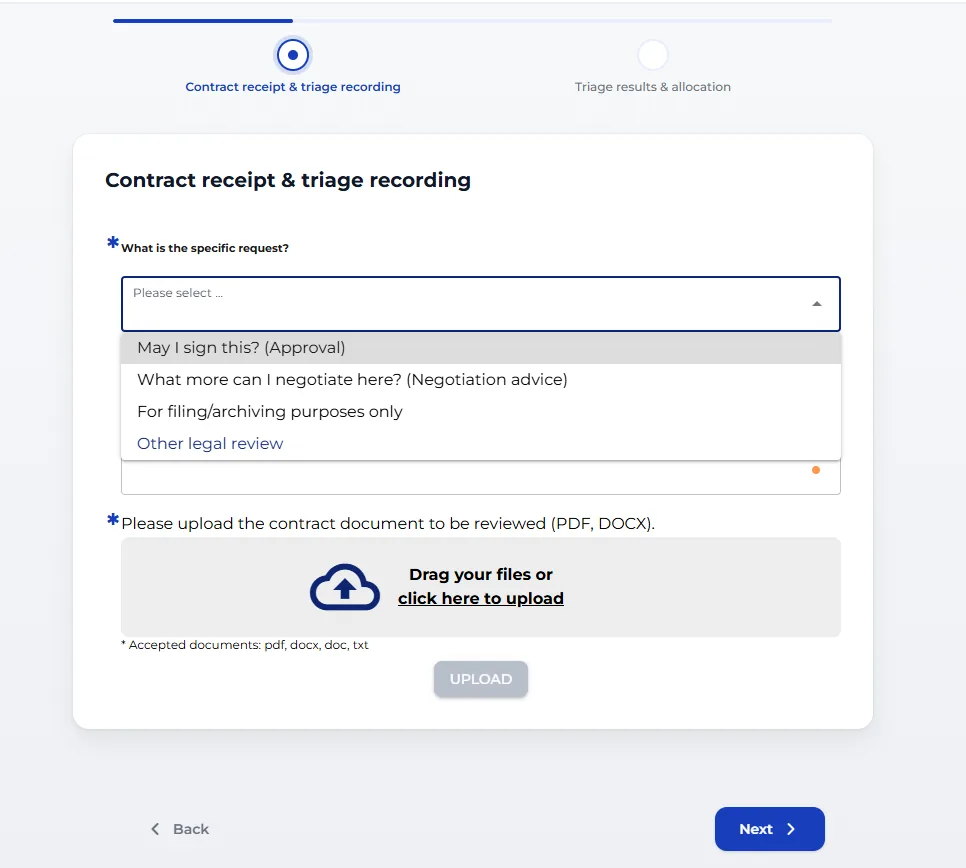
The bot opens with a short form. It asks for the counterparty, the date the contract came in, and the email address of whoever is submitting it. Right after that comes a single dropdown: what does the person actually need, sign off before signing, help negotiating, filing for archiving, or something else entirely.
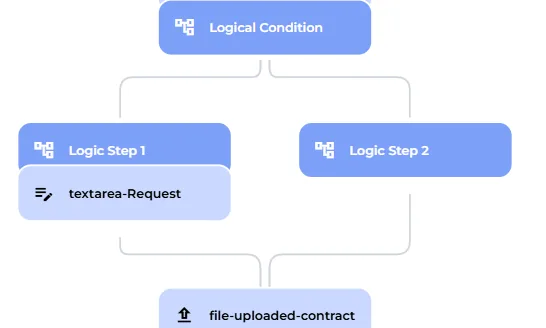
A branch for the edge case
Only one of those four options needs more detail. Selecting other legal review opens a short free text field where the person describes what they actually need, so the reviewing team isn’t left guessing. Every other option skips straight past it and moves on to the upload step, where the contract itself goes in as a PDF or Word file.
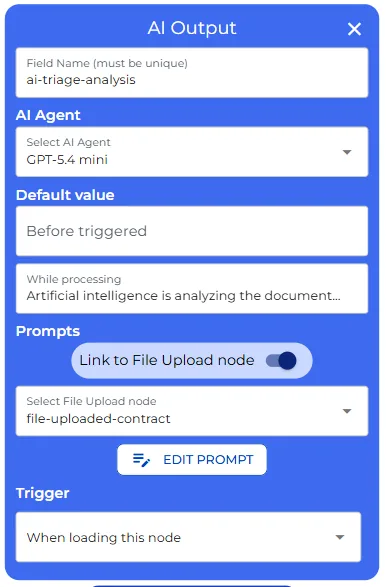
AI contract analysis
Once the file is uploaded, a dedicated AI step reads the document together with the counterparty, the date, and whatever the person said they needed, and returns three things in one pass: the contract type, the assigned team, and a risk rating. It’s linked directly to the file upload node and runs the moment the file lands, with its own status message while it works.
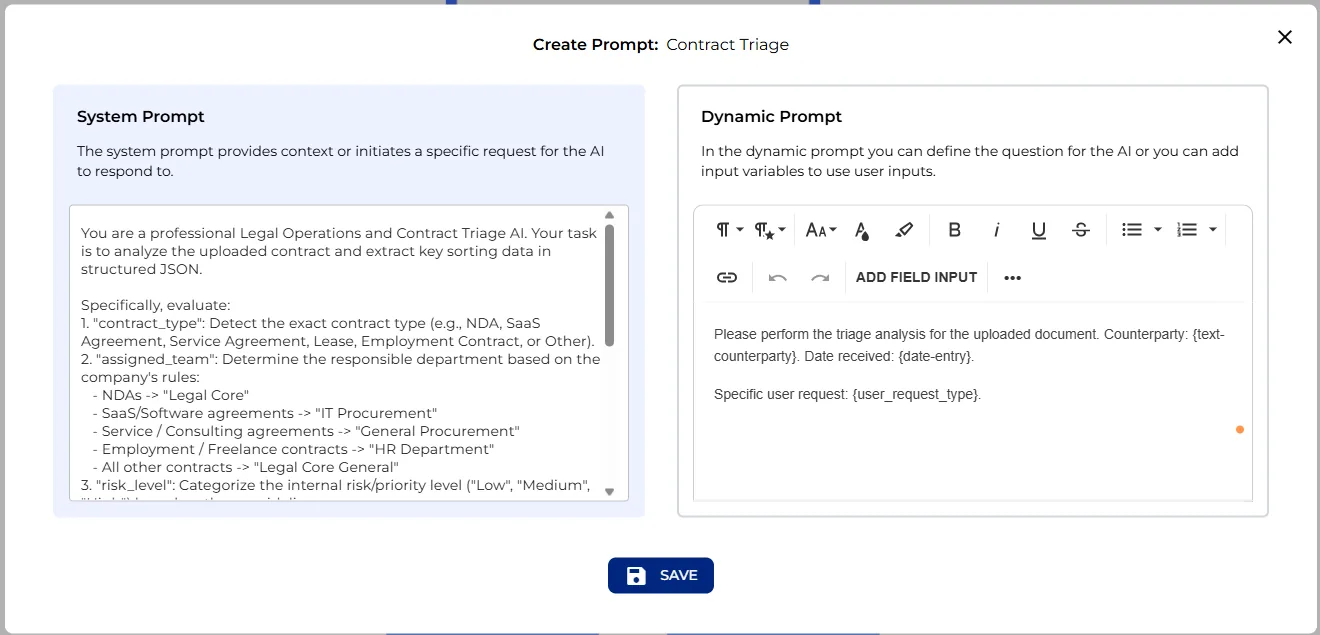
The system prompt behind it defines all three outputs, the contract type, the routing rules, and the risk thresholds, in plain language:
You are a professional Legal Operations and Contract Triage AI. Your task is to analyze the uploaded contract and extract key sorting data in structured JSON.
Specifically, evaluate:
- “contract_type”: Detect the exact contract type (e.g., NDA, SaaS Agreement, Service Agreement, Lease, Employment Contract, or Other).
- “assigned_team”: Determine the responsible department based on the company’s rules:
- NDAs -> “Legal Core”
- SaaS/Software agreements -> “IT Procurement”
- Service / Consulting agreements -> “General Procurement”
- Employment / Freelance contracts -> “HR Department”
- All other contracts -> “Legal Core General”
- “risk_level”: Categorize the internal risk/priority level (“Low”, “Medium”, “High”) based on these guidelines:
- If the user’s request is purely for archiving (“Nur zur Ablage / Archivierung”), risk_level should default to “Low” unless severe issues exist.
- “High”: Contains unlimited liability, governing law outside the EU/Germany, term > 36 months, or severe non-compete clauses.
- “Medium”: Liability capped between EUR 100,000 and EUR 1,000,000, term between 12 and 36 months, or automatic renewal periods.
- “Low”: Liability capped below EUR 100,000, standard NDA terms, or term < 12 months.
Format your output as a single, valid JSON object with the following keys. Do not include any markdown wrappers (such as ```json) or conversational pleasantries: { “contract_type”: “[Extracted Contract Type]”, “assigned_team”: “[Assigned Team Name]”, “risk_level”: “[Low/Medium/High]” }
This is the node to edit if your organization needs a different routing table, different risk thresholds, or an additional contract type the list above doesn’t cover.
Risk-based routing
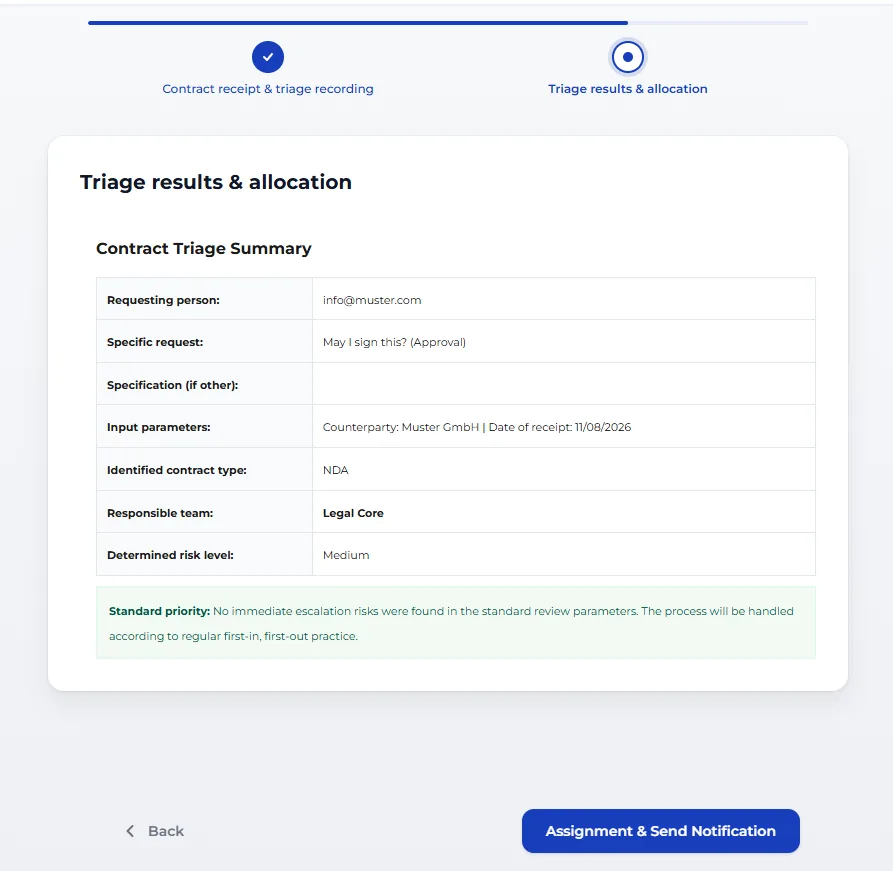
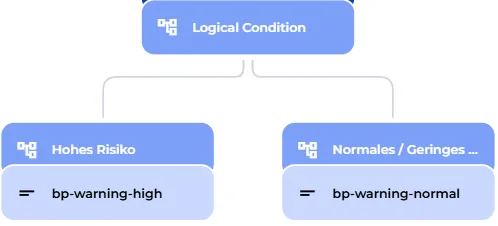
The risk level the AI just returned drives a branch built into the bot. High risk attaches a red warning telling the reviewer this needs immediate attention from a senior colleague. Everything else attaches a green notice confirming the contract goes into the normal queue. This is also where you’d add a third tier, if your process ever needs one.
Summary, confirmation, and notification
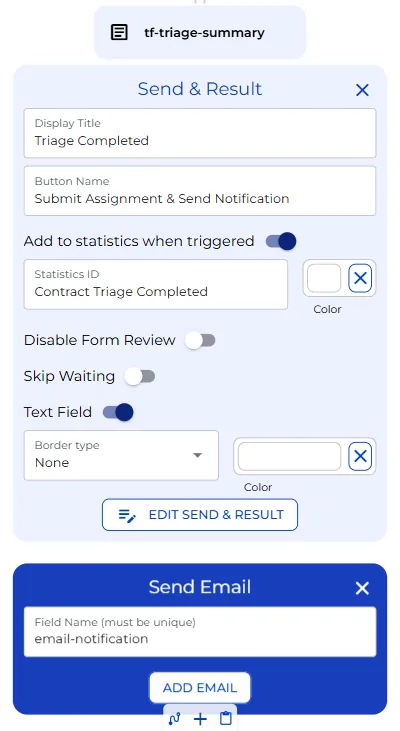
All three results, along with the requester’s details, land in one summary panel. From there it’s a single confirmation click, its own step, separate from the summary. Once that’s clicked, a notification email fires automatically to whichever team was just assigned, and you can configure the content of that email too.
User view
On the user’s side, the flow is a shorter version of the same process. Someone enters the counterparty, the date, and their own email.
They pick what they need, and if that’s other legal review, add a short description. Then they upload the contract, and a status message appears while the bot analyzes it.
A few seconds later the result appears: the contract type the AI detected, the team it’s been assigned to, and the risk level, with a red or green banner depending on the outcome. One click to confirm, and the assigned team is notified automatically, no forwarding required.