MultiProcess in e!: Bulk Legal Document Processing Explained
Use e! MultiProcess to process multiple legal documents at once — run bulk NDA reviews, compliance checks, or contract screenings with a single published bot.

Multiprocess is a powerful new feature in e! that lets you process multiple documents simultaneously—perfect for scaling document checks like NDAs or compliance reviews. Here’s how it works.
Step 1 – Understand Multiprocess Eligibility
Before you begin, check whether your bot supports Multiprocess.
Navigate to your bot list.
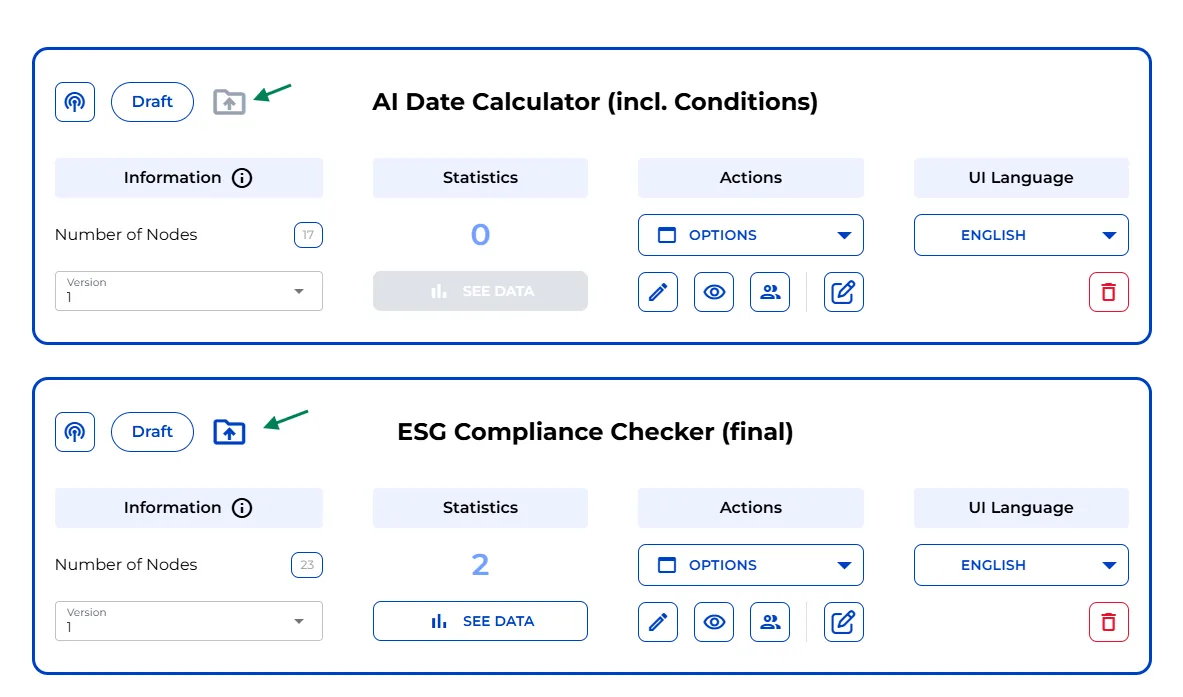
Look for the Multiprocess icon next to each bot:
-Blue icon = Bot is eligible.
-Grey icon = Bot is not eligible.
❗ Tip: To ensure your bot is eligible, you need to make sure that:
-The first path after the root node contains one “files node”.
-Additional file nodes must have no frontend.
-The bot must be published before adding bot to MultiProcess dashboard.
-Other inputs must be automatically filled, pull data from uploaded documents, or are optional.
Step 2 – Ensure Your Bot Is Published
Multiprocess only works with bots that are already published.
-If your bot is still in draft mode, go to the editor and publish it.
-Once live, the bot will work just like usual—users can still fill it out interactively.
But as the bot creator, you’ll unlock Multiprocess mode from your dashboard.

Step 3 – Open the Multiprocess Dashboard
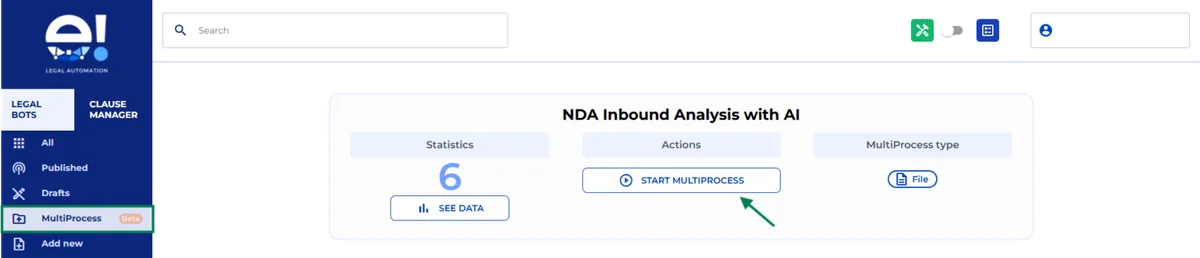
Head over to your Multiprocess dashboard.
-Select the eligible bot you want to run.
-Click Start to begin the Multiprocess workflow.
Step 4 – Upload Documents
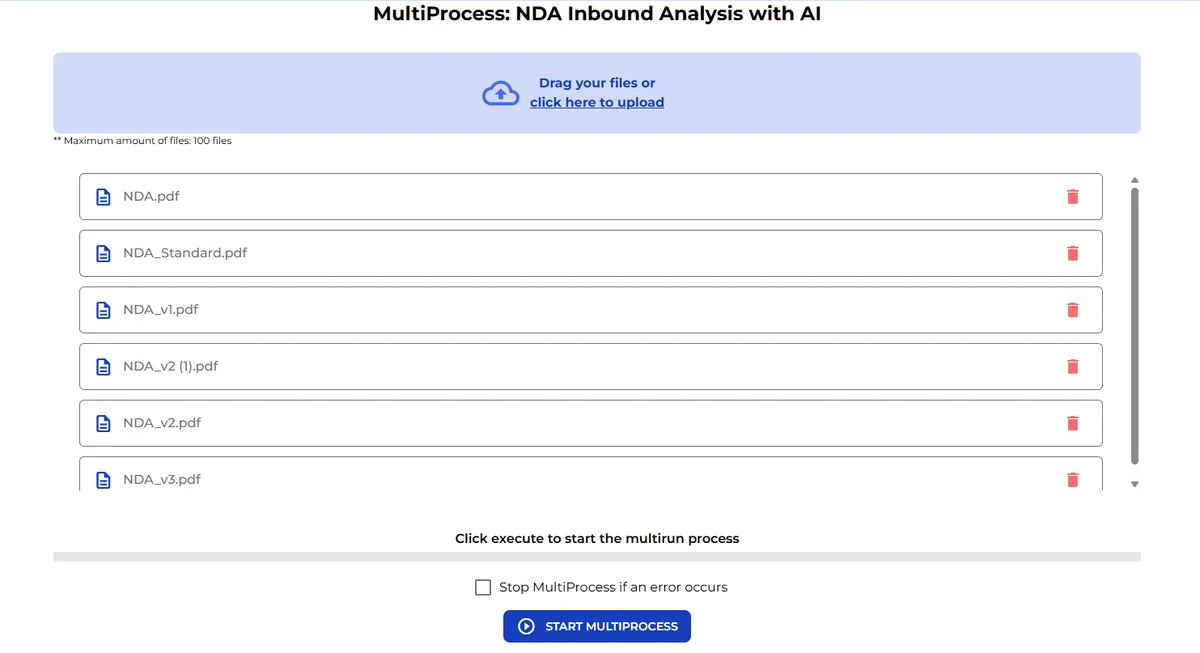
You can now upload multiple documents for processing.
-Click Upload Files and select as many documents as needed (e.g. NDAs, contracts).
-All documents will be processed in parallel using the selected bot.
Step 5 – Choose Processing Mode
Before launching, choose how errors are handled:
-Stop on Error – Halts the process as soon as an error occurs.
-Continue Anyway – Runs through all documents and flags errors for later review.
🔘 You can also stop the process manually at any time using the “Stop Multiprocess” button.
Step 6 – Review Results
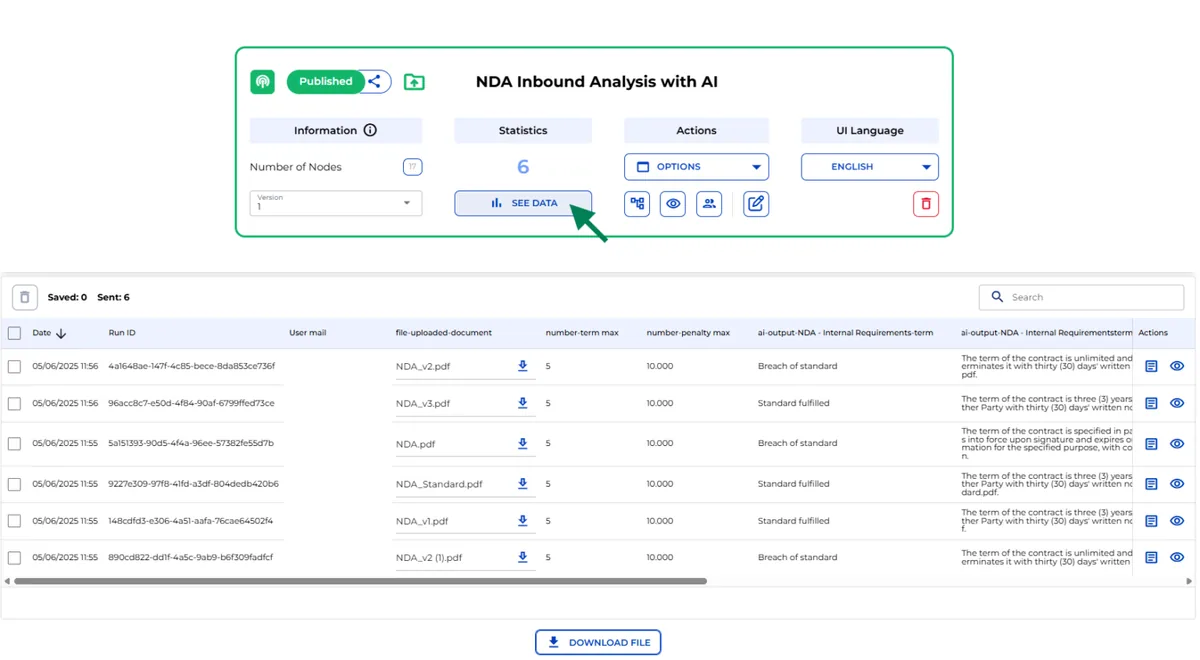
Once the run is complete, results will appear in your dashboard under Statistics.
Click See Data to explore:
-Each processed document
-Output results
-Any generated files or detected issues
📊 Multiprocess gives you a transparent view of all outcomes in one place.
That’s It!
You’re now ready to multiply your legal automation with Multiprocess.
Save hours of repetitive work, reduce risk, and scale your legal document review in just a few clicks.