Bot Scheduler: Run Legal Bots Automatically in e!
Learn how to schedule an e! bot to run on its own, no user input required, and how admins can monitor every scheduled bot from a single dashboard.

Some bots don’t need anyone to fill in a form, like one that checks a shared inbox every morning, or one that scans a calendar for free slots. For jobs like that, e! can run the bot on a rhythm you set.
Eligibility: What a bot needs before it can be scheduled
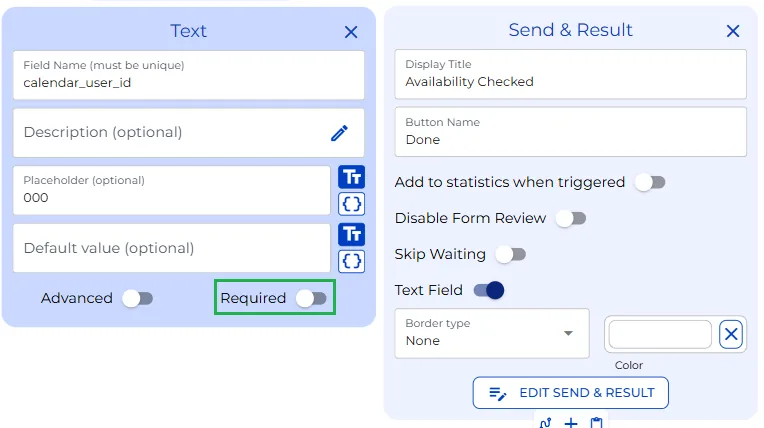
A bot can be scheduled if it meets exactly two requirements. First, no required user input: nothing the bot stops and waits for someone to fill in. A required field means someone has to be there to answer it, which rules out running unattended. Second, the bot needs a Send & Result node to complete its process.
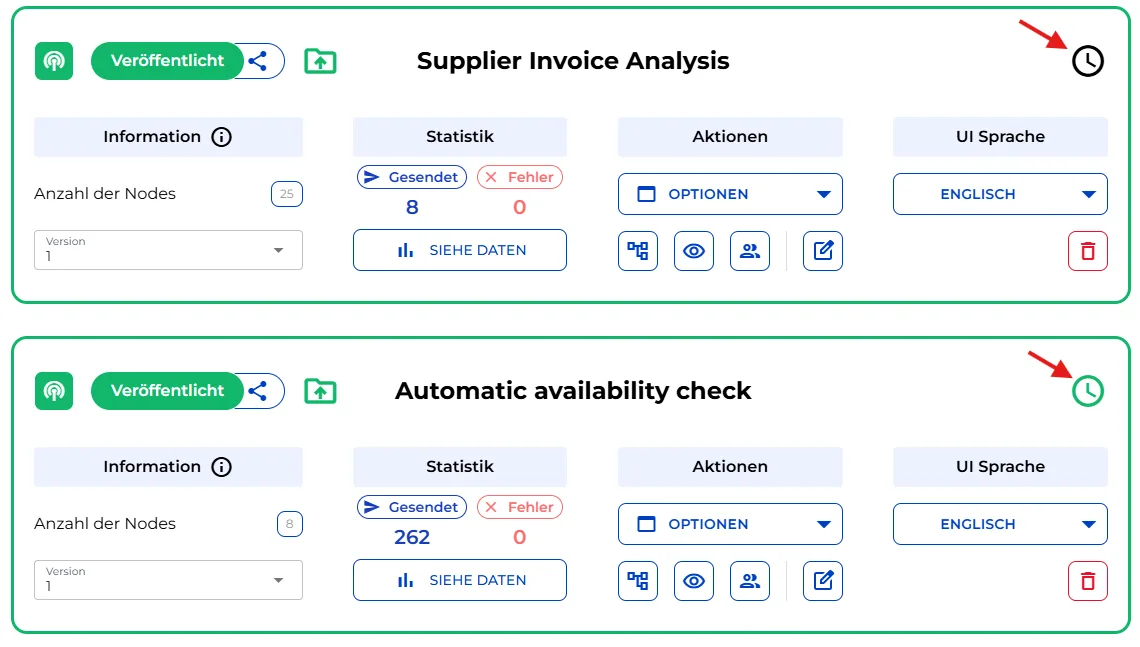
Before the scheduler can be used, the bot has to be published. Notice the clock icon on the bot card: it stays black until you schedule and save a run, then it turns green, signaling there’s an active schedule for this bot.
Setting up a schedule
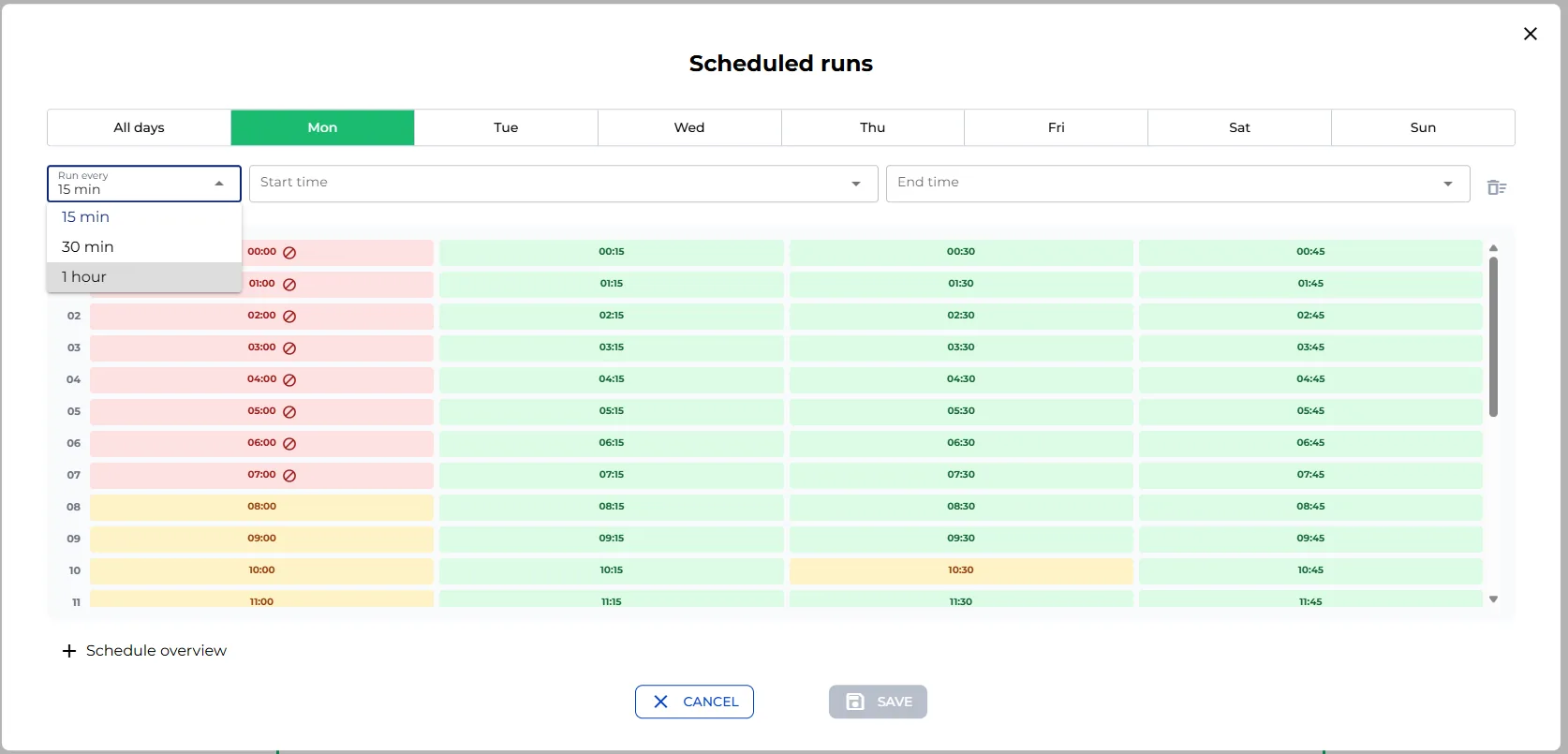
Inside the scheduler, you pick two things: which days, and which time slots on those days. Choose how often it repeats, every fifteen minutes, every half hour, or every hour, then select the days and set a start and end time. You can select either by clicking the dropdowns or by clicking a time slot and dragging to select the range.
If you only need a one-time run, choose a single day and a specific time instead of a range of days. At the bottom of the window, a schedule overview summarizes the days and times you’ve selected.
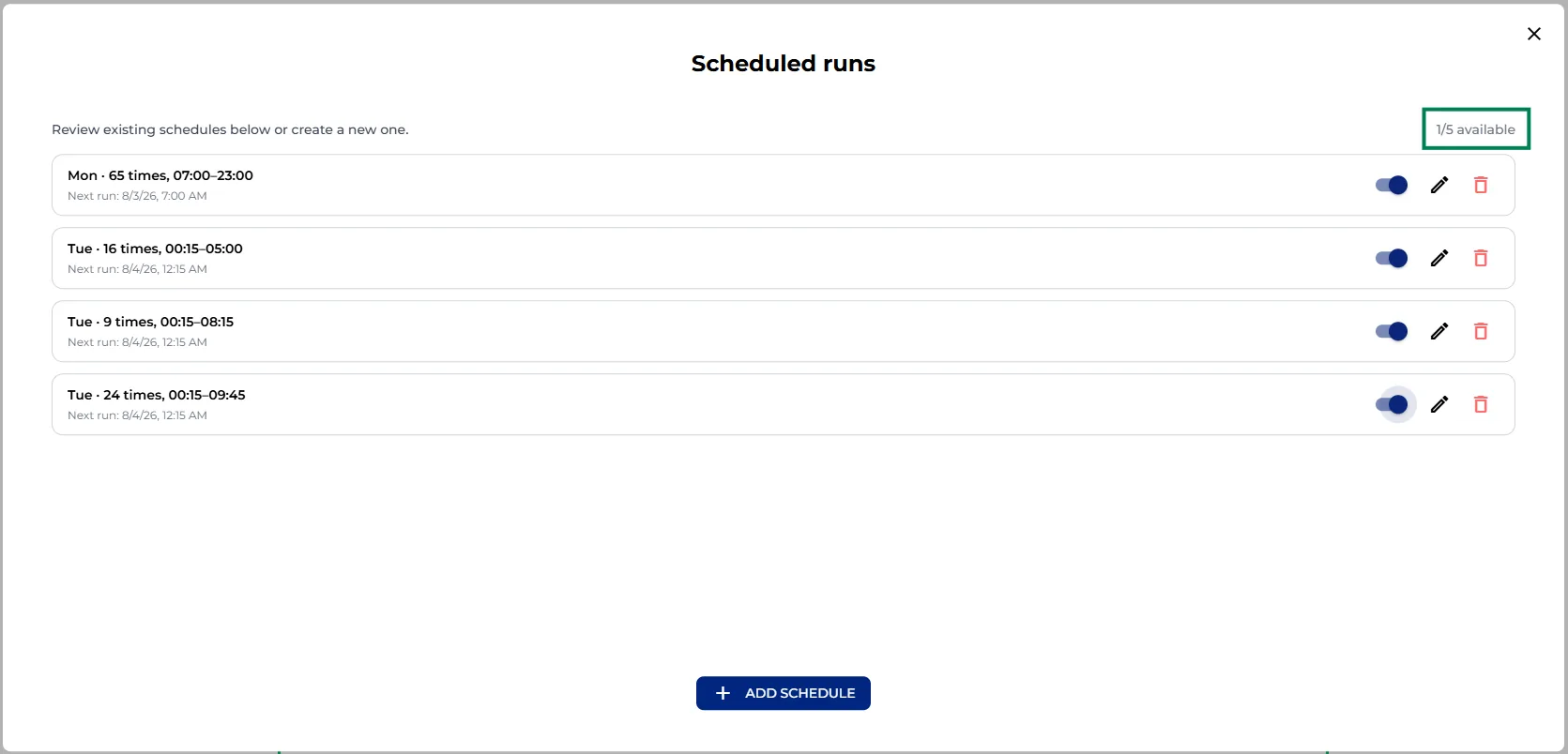
Once you save, you get a short summary. From there you can pause it, edit it, or delete it. You’re not limited to one pattern either, you can add a second, tighter schedule (just for Tuesdays, for example) and stack up to five per bot.
Shared time slot limits
One more number to know: to keep performance smooth, e! allows only ten schedules to share the exact same time slot across your whole workspace, no matter which bots they belong to.
The system warns you as you approach that ceiling: the picker turns yellow at five, and locks the slot entirely once you hit ten, until one clears. Five schedules on one bot plus five on another can fill that slot completely, so watch for this if several bots share the same busy hours.
Unpublishing a bot stops its schedules from counting, nothing is deleted, republish it and everything picks back up.
Admin reporting: the Schedules dashboard
A report of all scheduled bots is available in the settings section of e!. This Schedules section is only visible to account admins. Bot builders can view and manage the schedule for their own bots, but only an admin can open this dashboard and see every scheduled bot across the whole account in one place.
By default, it shows a summary for all bots combined: how many are currently active, what percentage of scheduling slots are used, how many bots have a schedule set up, and how many runs happen every week.
The Busiest Times toggle breaks this down visually. Slots that are completely full show in red, slots with some room left show in yellow, and quieter windows show in green. You can also filter by day of the week to check a specific day.
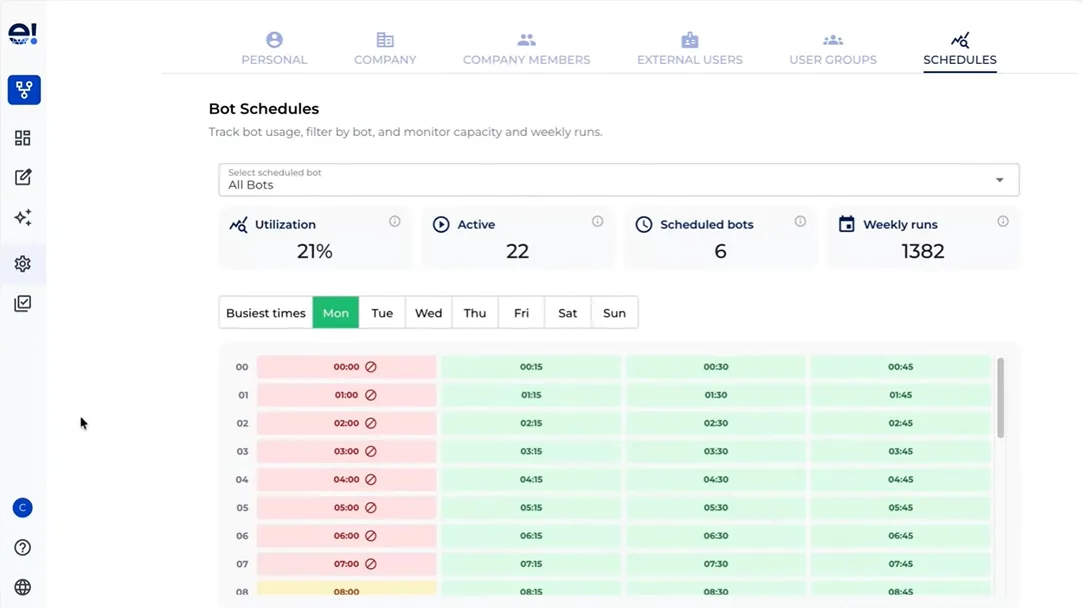
At the top, a dropdown lists every bot with an active schedule. Selecting one filters the whole view down to just that bot, showing who created it, its own active slots and weekly runs, and the same busiest-times and day-of-week breakdown. This is a read-only overview, no adjustments can be made from here.
That’s the scheduler: no clicking send, no one watching the clock, just your bots running exactly when you need them to.