Logical Condition Node: Route Legal Bots Based on User Input
Use the Logical Condition node in e! to branch Legal Bot workflows based on user input — set operators, variables, and multi-step decision paths.
Logical Condition
The Condition Node is a versatile feature for incorporating simple or complex logical conditions into your Bot. In this tutorial, we’ll go through the process of setting up a Condition Node with two basic conditions.
Step 1: Add the Condition Node
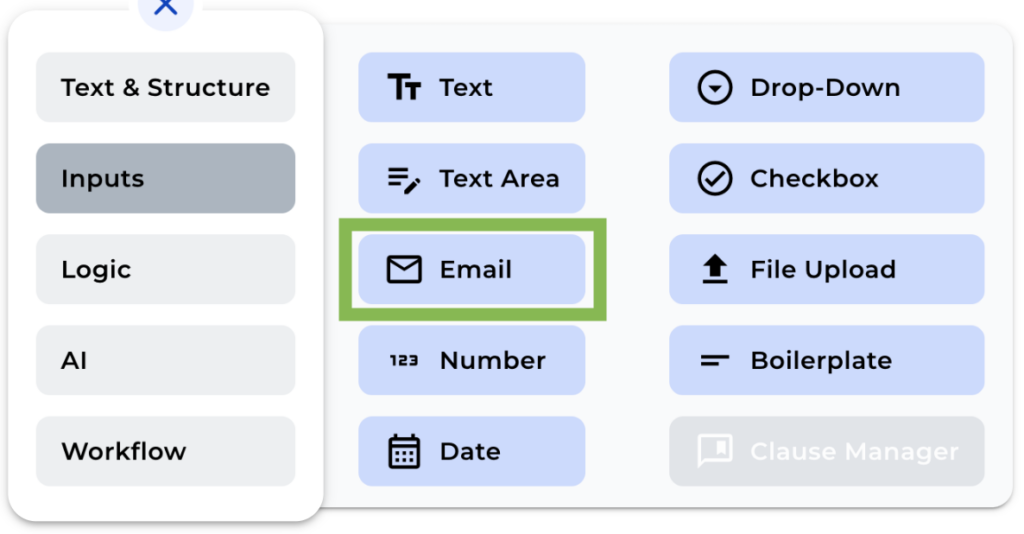
Start adding the Condition Node to your Bot and click on “Add Logic” to input as many conditions as you need. In this example, we’ll create two conditions.
Step 2: Create the First Logic Step
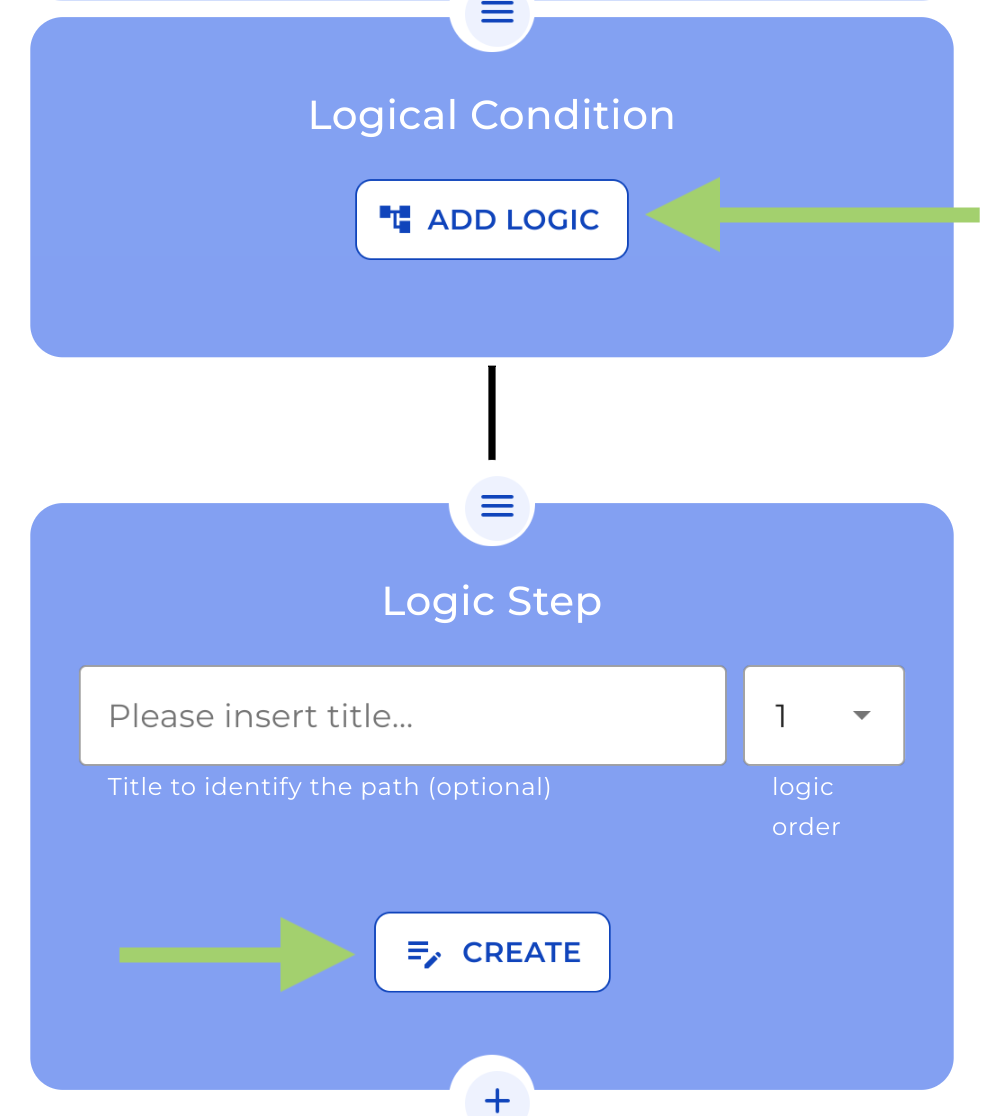
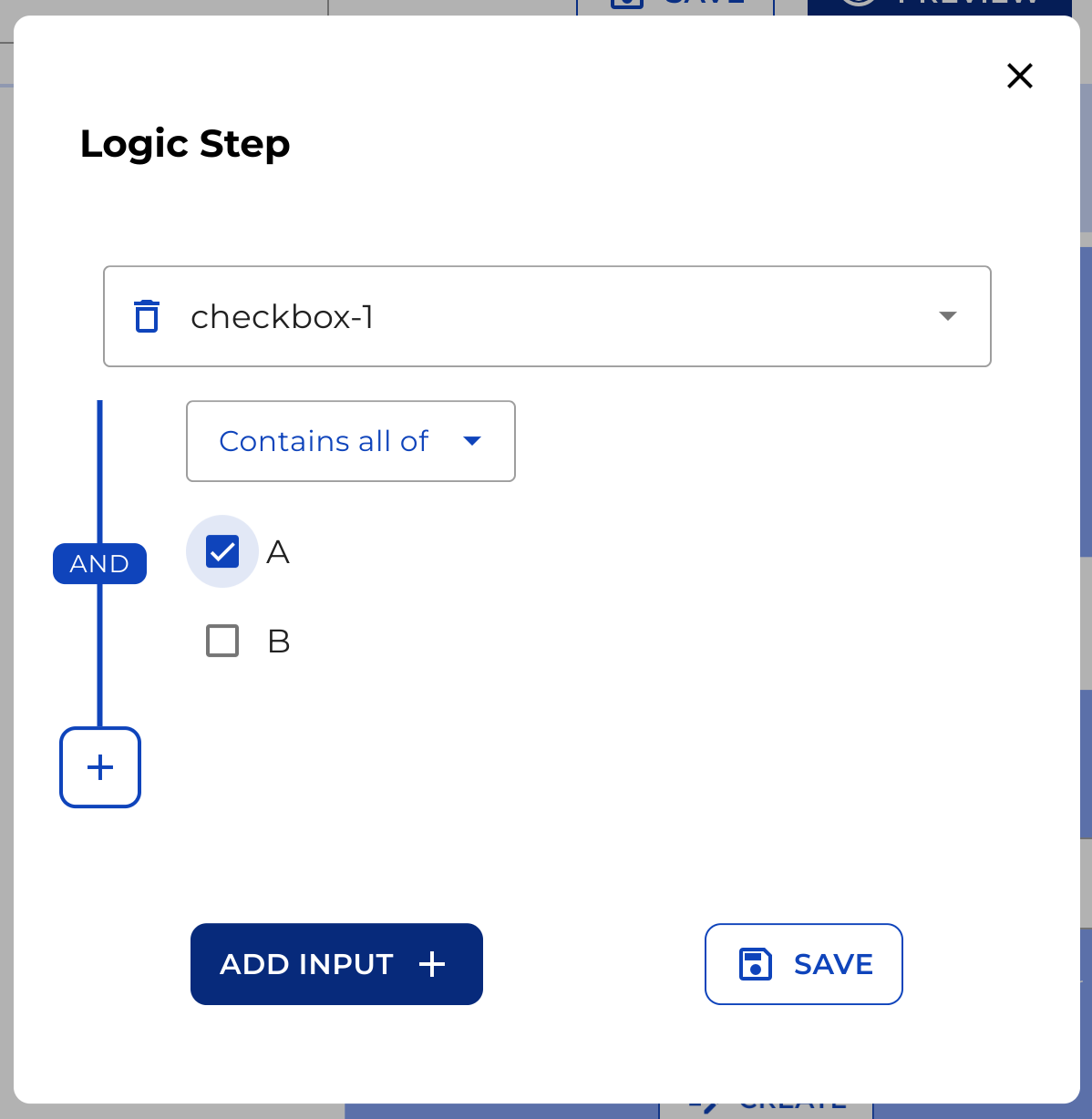
Click “Create” to create the first logic step. Select the input field variable you want to use, such as a checkbox variable with options “A” and “B.” For this step, we want it to trigger when the user selects “A.”
Step 3: Create the Second Logic Step
Click “Create” again and select the Input variable, and this time set the step to trigger when the user selects “B.” Click “Save” to finalize the conditions.
Step 4: Add Text Fields Based on User Selection
To demonstrate how conditions work, we’ll add different Text Field Nodes to display in the front end based on the user’s selection.
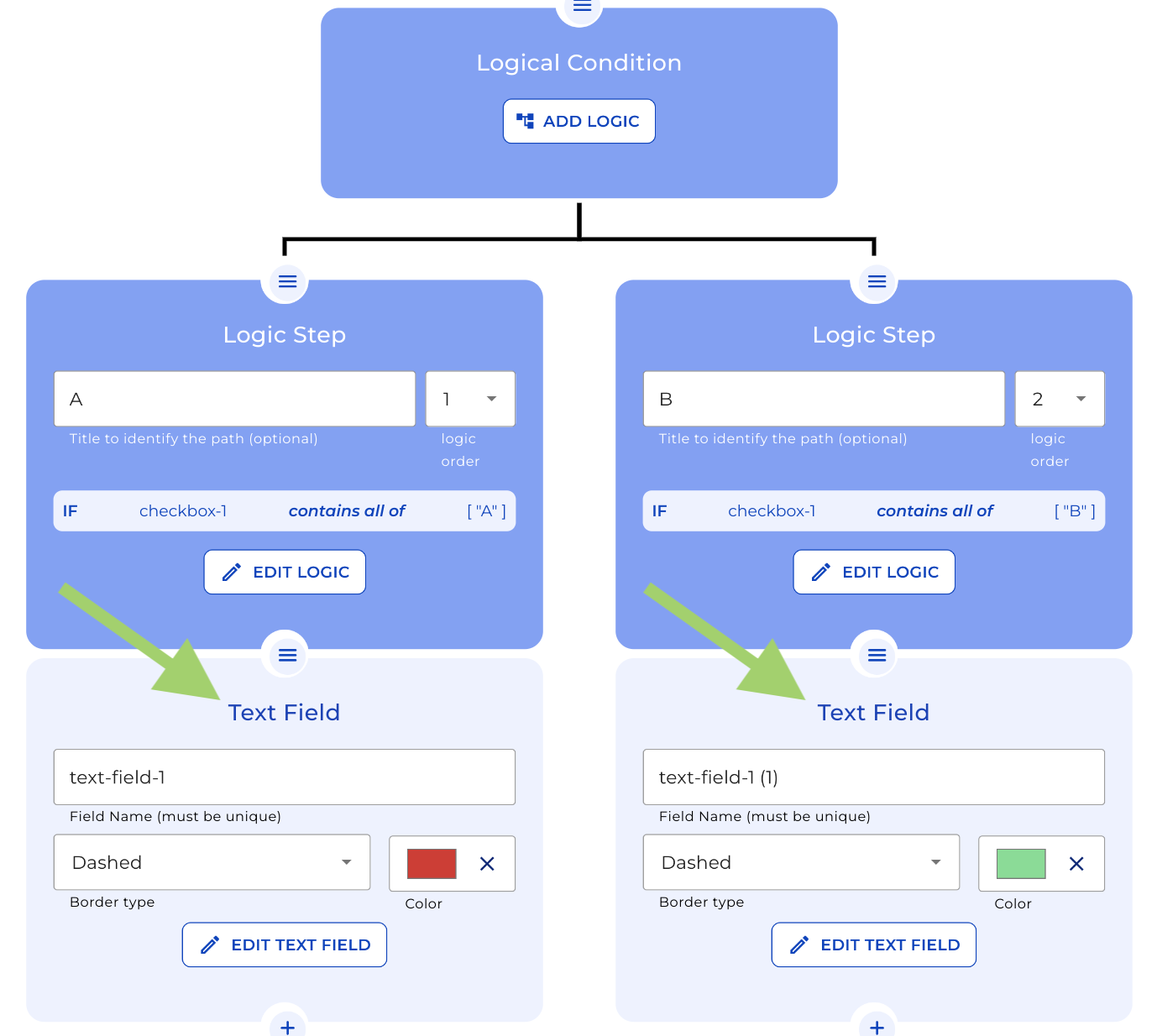
-For the First step, add a Text Field Node with the message “Thank you for selecting ‘A’.” -For the Second condition, copy the Text Field Node, paste it onto the second path, and change the text to “Thank you for selecting ‘B’.”
Step 5: Preview the Logical Conditions
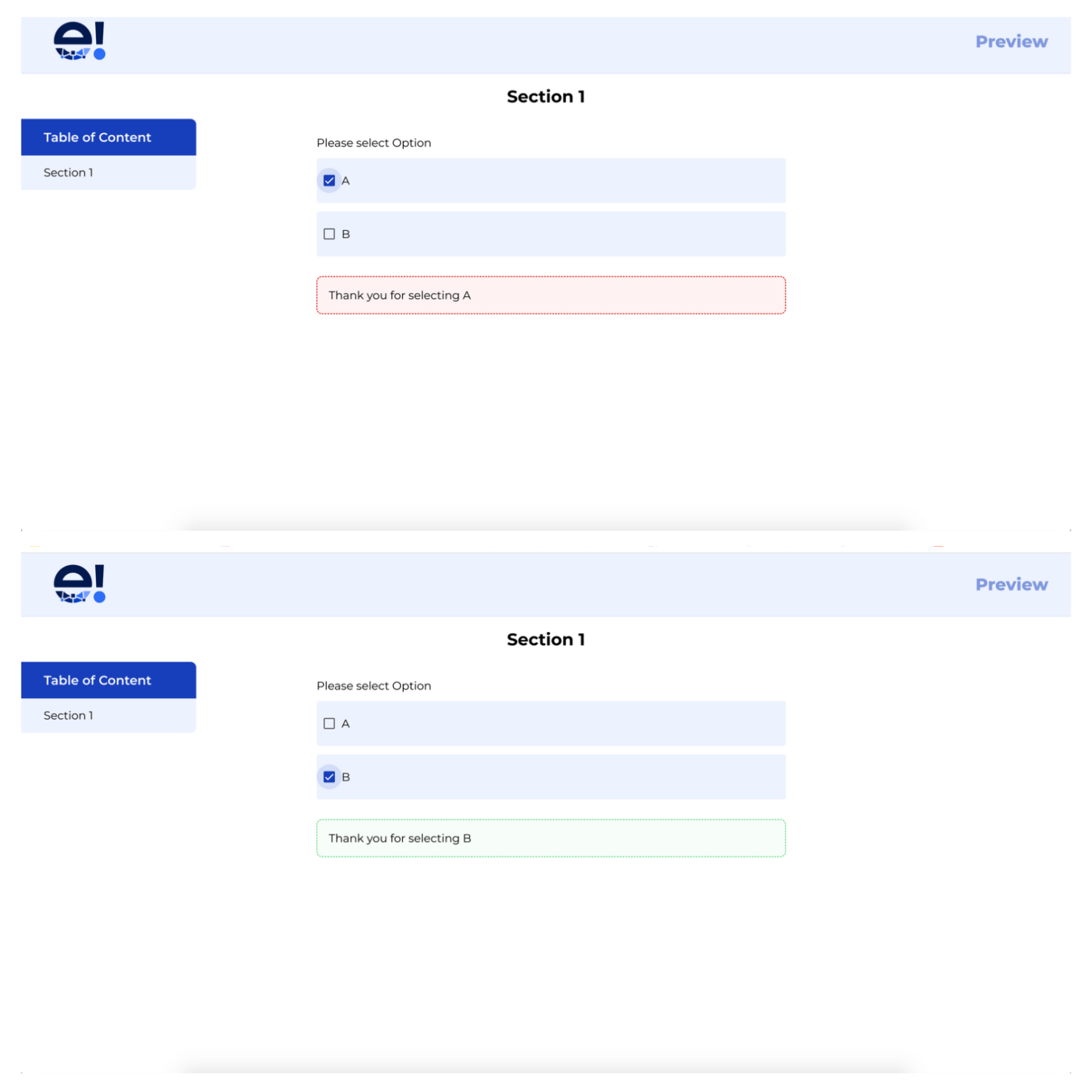
Click the “Preview” button in the header menu to view the front end, where you’ll see the Logical Conditions in action. Selecting “A” in the checkbox displays the text from the First Text Field Node (“Thank you for selecting ‘A’.). When selecting “B” shows the text from the second path based on the Second Logic Step (“Thank you for selecting ‘B’.)
And that’s it! While this is a simplified example, the Condition Node can be used to create far more complex conditions.